


Ultimate Tutorial to Play Spotify Music on Android TV
- Updated on Aug. 10, 2026
 Wyatt Maxwell
- General, Spotify Tips
Spotify is one of the world's most popular music streaming services, offering millions of songs and podcasts for both Free and Premium users. You can access Spotify on a wide range of devices, including Windows PCs, Macs, Android and iOS devices, smart TVs, and web browsers.
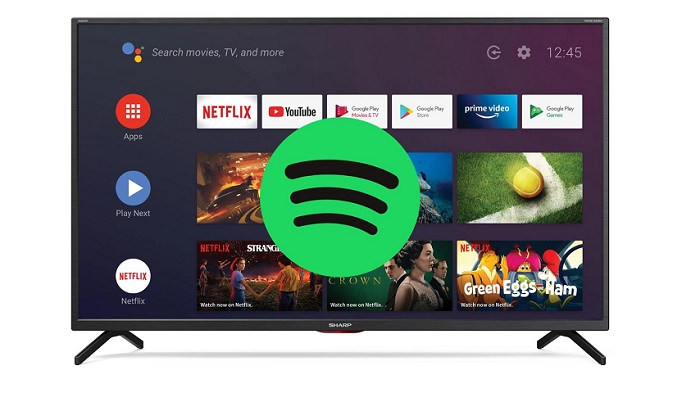
Many Android TV-powered smart TVs have a dedicated Spotify app, allowing you to stream your favorite music and podcasts directly on your TV. However, some older or unsupported Android TVs may not have access to the Spotify app. So, how can you play Spotify on an old TV?
In this guide, we'll show you three practical ways to play Spotify music on an Android TV, including options for TVs that don't support the Spotify app. Let's get started.
Method 1. Listen to Spotify Music With Spotify for Android TV App
Many Android TVs offer a Spotify app. If you can find it on your TV, install it and stream Spotify on your Android TV directly.
Step 1. Turn on your Android TV and make sure your TV is connected to the internet. Press the home button on the remote and move to the Apps section. Click the Google Play Store.
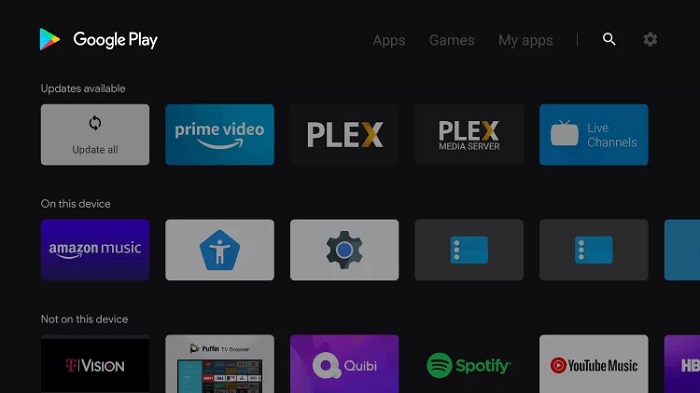
Step 2. Search for the Spotify app in the search field. Select the Spotify app from the search results. Click on the Install button and wait for the process to complete.
Step 3. After the installation is complete, select Open to launch the Spotify app on your TV. If you use the program for the first time, you'll be asked to sign in or create a new account.
After successful login, now you can start playing your favorite music by using your remote control.
Method 2. Cast the Spotify App to Android TV With Google Chromecast
Chromecast lets you cast Spotify to a TV using your phone or tablet as the remote. Here's how to use Chromecast with Spotify.
Step 1. Connect your Chromecast device to your Android TV. Make sure your device and the Chromecast are connected to the same Wi-Fi network.
Step 2. Open the Spotify app on your smartphone, desktop, or tablet. Select a song to start playing.
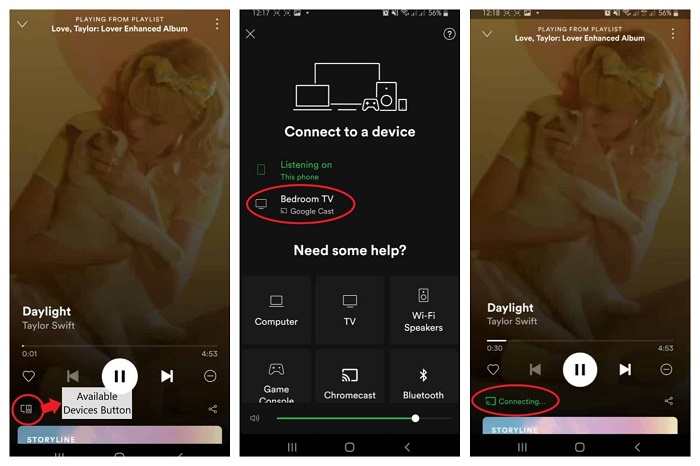
Step 3. Tap on the Devices Available option at the bottom of your screen. From the list of the available device on your screen, select your preferred Chromecast device. Then you can listen to the streaming Spotify music using your Android TV.
Method 3. Play Spotify Music from A USB Device on Your TV
Many Android TV models have a USB port to play media files stored in USB devices. If you can move Spotify music to a USB drive, you could play Spotify on your TV through the USB drive. But Spotify streams are cached files and can only be played within the Spotify app.
To transfer Spotify music to USB devices, Macsome Spotify Downloader is simply a very useful tool. It is designed to aid both Spotify Premium and Free users to download Spotify tracks, albums, playlists, and podcasts with original quality. It is also capable of converting Spotify music to MP3, WAV, AAC, FLAC, AIFF, and ALAC with ID3 tags preserved. In this way, you can effortlessly move Spotify songs to a USB device for playback on your TV.
Key Features of Macsome Spotify Downloader
- Download Spotify music, playlists, and podcasts with high quality.
- Convert Spotify songs to MP3, AAC, WAV, FLAC, AIFF, or ALAC.
- Support batch downloading at up to 40x faster speed.
- Almost all the ID3 tags will be preserved.
- Move Spotify Music to USB devices, SD cards, etc.
- Burn Spotify music to a CD with one click.
- Import Spotify music to Apple Music/iTunes with one click.
- Suitable for both Spotify Premium and Free users.
3.1. How to Download Spotify Music to a USB Drive
The following tutorial shows you how to download Spotify music with Macsome Spotify Downloader and transfer the downloaded songs to a USB drive. You can then use the USB drive to play Spotify music on an Android TV, even when the TV does not support the Spotify app.
Step 1. Launch Macsome Spotify Downloader
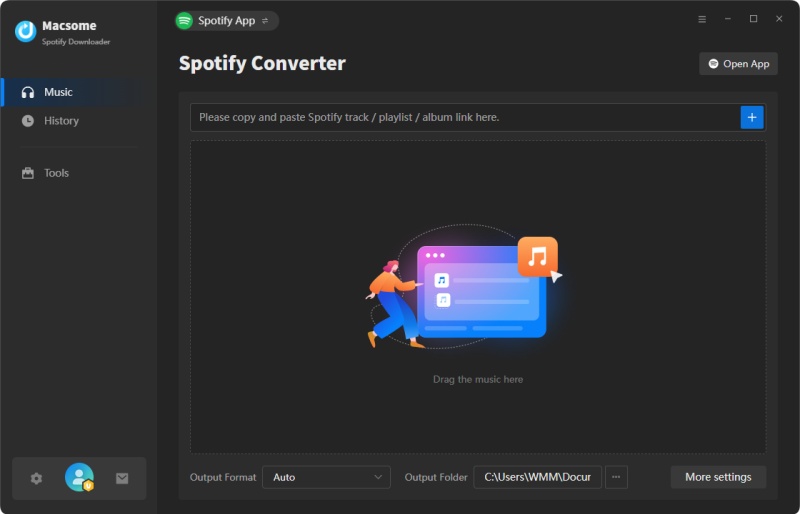
Download and install Macsome Spotify Downloader on your Windows PC or Mac. Launch the program, and the Spotify app will open automatically.
Step 2. Select Spotify Music to Download
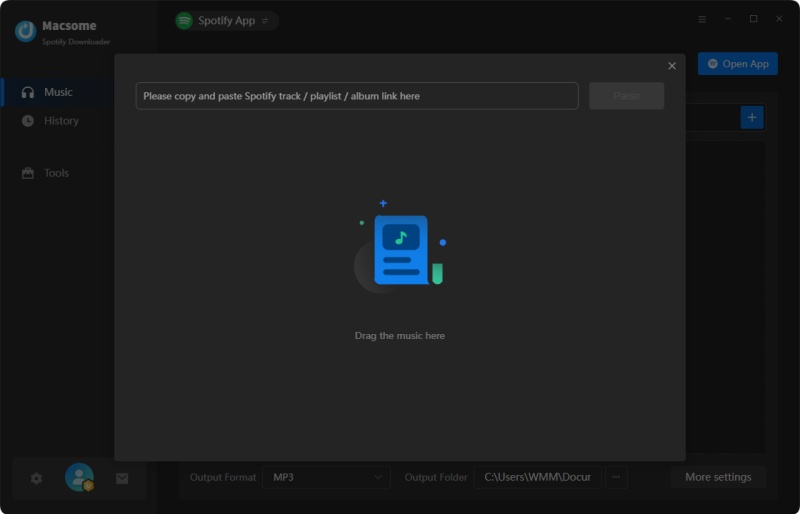
Click the "+" button to open the window for adding Spotify songs or playlists.
Search for the songs, albums, or playlists you want to download. You can drag and drop the selected music into the program, or copy and paste the Spotify link into the search box to load the songs.
Step 3. Set the Output Format for Android TV
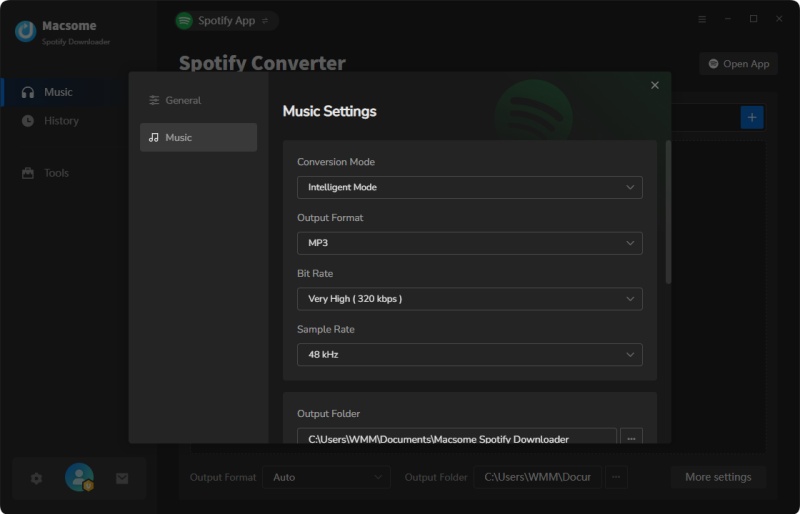
Click the "Settings" icon to customize the output format and audio parameters. Select MP3 as the output format for better compatibility with Android TV and USB media players. You can also adjust the sample rate, bit rate, output folder, file name, and file organization settings.
Step 4. Download Spotify Music to MP3
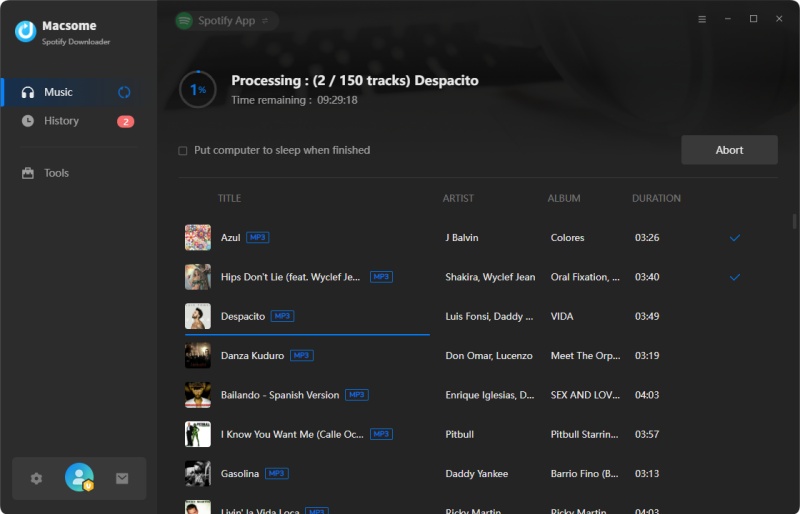
Once you have finished configuring the settings, click the "Convert" button to start downloading the selected Spotify songs. The download time depends on the number of tracks and your network connection.
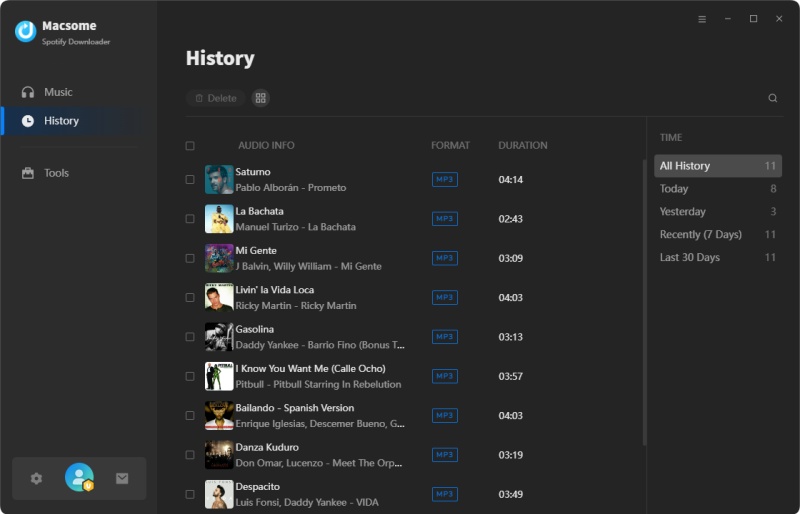
When the download is complete, open the "History" tab to find your downloaded Spotify songs. Click the "folder" icon next to a track to open its location on your computer.
Step 5. Transfer Spotify Music to a USB Drive
Connect a USB flash drive to your computer. Open the folder containing your downloaded Spotify music, then drag and drop the MP3 files to the USB drive.
3.2. How to Play Spotify Music on an Android TV from a USB Drive
After transferring the downloaded Spotify music to a USB drive, you can connect the drive to your Android TV and play the music using a compatible media player. The exact steps may vary depending on your TV model and Android TV interface.
Step 1. Connect the USB Drive to Your Android TV
Plug the USB drive containing your downloaded Spotify music into an available USB port on your Android TV.
Step 2. Open the USB Device
Use your TV remote to open the Home screen and navigate to the Source, Media, or USB Device section, depending on your TV model.
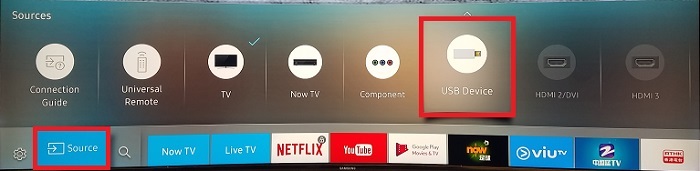
Step 3. Select and Play Spotify Music
Open the folder containing your downloaded Spotify songs and select the music file you want to play. Press the Enter or OK button on your remote to start playback. You can now play Spotify music on your Android TV from the USB drive.
Summary
In this article, we introduced three methods for you to listen to Spotify music on your Android TV. You can use the official Spotify app on Android TV for playing directly. If you have Google Chromecast, you can also use it to cast Spotify to your TV. With Macsome Spotify Music Downloader, you can download music from Spotify without a Premium subscription and listen to Spotify music on Android TV through USB devices without the Spotify app. It's pretty amazing! Why not try it?