


Two Effective Methods to Play Spotify in Airplane Mode
- Updated on Aug. 10, 2026
 Wyatt Maxwell
- General, Spotify Tips
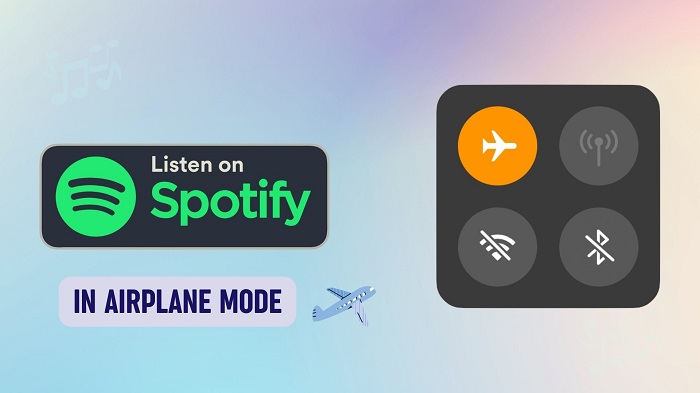
Traveling by plane is very convenient, and it saves a lot of time. Before the plane took off, you should follow your flight attendant's instructions and put your phone into airplane mode. When you enable airplane mode, you disable your phone's ability to connect to cellular or Wi-Fi networks or Bluetooth. You can still listen to music, take photos, and more other things that don't require a signal or internet.
Spotify is an online music streaming service. As long as you have a Spotify account, you can get access to millions of songs and podcasts over the internet or a mobile network. So the question becomes: does Spotify work in airplane mode? Is it possible to play Spotify music in airplane mode?
Take it easy, all you need to do is to download music from Spotify so that you can listen to Spotify music offline on your mobile devices. In this article, we will propose two effective methods to enable both Spotify Premium and Free users to enjoy Spotify tracks in airplane mode with ease.
Method 1. Play Spotify Music in Airplane Mode with Premium
As known to all, Spotify is one of the most popular audio streaming subscription services. If you subscribe to Spotify Premium, you are able to download albums, playlists, and podcasts on Spotify's mobile app for offline listening. Therefore, you can listen to offline Spotify content in airplane mode. Here's a full step-by-step guide.
1. Launch the Spotify app on your iPhone or Android device and log into your Spotify Premium account.
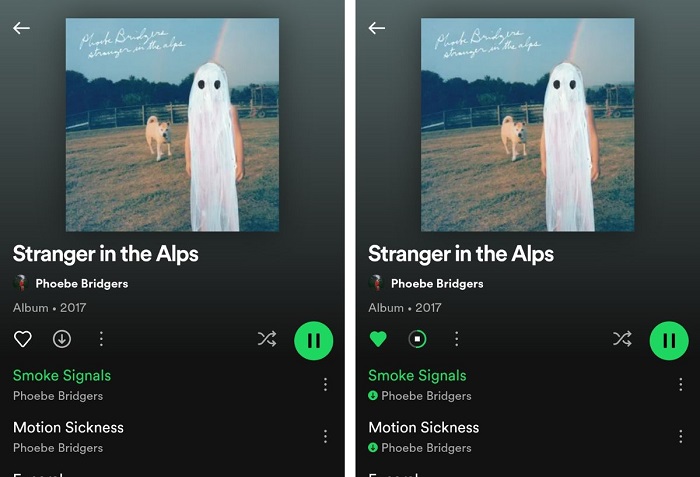
2. Select the album or playlist you want to download. Tap the download icon (downward arrow in a circle) on the playlist/album information. Once the album or playlist is successfully downloaded, the download icon will turn green.
3. Open the menu (gear icon) on the upper right side of the screen, scroll down and search for the Playback tab and select it. Then toggle Offline mode to on.
After toggling offline mode, you can listen to Spotify music on a plane without an internet connection or Wi-Fi.
Method 2. Play Spotify Music on Airplane Mode without Premium
The download mode is only available for Spotify Premium subscribers. Spotify Free users cannot download Spotify music for listening offline. So, how can Spotify Free users play Spotify music in airplane mode? Don't worry, Macsome Spotify Downloader is a professional Spotify music downloading tool for you. With it, both Spotify Premium and Free users can download Spotify music songs, albums, playlists, podcasts, and radios and save them as local files on their computers.
Besides, as an excellent Spotify Music Converter, it can also convert Spotify music to MP3, AAC, WAV, FLAC, AIFF, and ALAC with quality loss. Thus, you can transfer Spotify music files to any device so that you are able to enjoy them offline. Even better, the original ID3 tags of Spotify music will be well preserved in the output file, including Title, Artist, Album, Artwork, Track Number, Disc Number, or Year.
Key Features of Macsome Spotify Downloader
- Download Spotify songs, playlists, podcasts, and radios with high quality.
- Convert Spotify songs to MP3, AAC, WAV, FLAC, AIFF, or ALAC.
- Support batch downloading at up to 40x faster speed.
- Almost all the ID3 tags will be preserved.
- Transfer Spotify music to iOS, Android devices, etc.
- Free updates and technical support.
- Simple, concise, and user-friendly.
Guide: Download Spotify Music for Offline Listening Without Spotify Premium
Macsome Spotify Downloader is easy to use. Even if you are a complete beginner, you can follow this guide to download Spotify songs and playlists for offline listening without Spotify Premium. Before you begin, make sure you have downloaded and installed Macsome Spotify Downloader and Spotify on your computer.
Step 1. Import Spotify Songs or Playlists
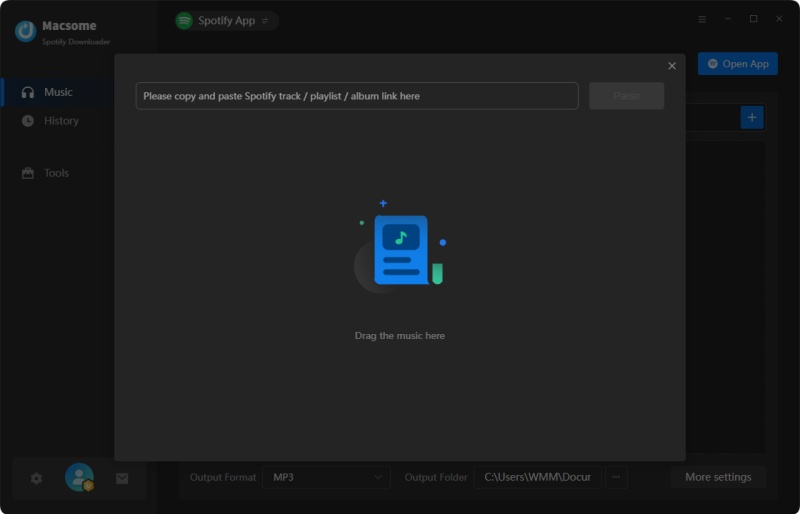
Launch Macsome Spotify Downloader, and Spotify will open automatically. Search for the songs or playlists you want to download, then drag and drop them into the adding window. You can also copy and paste the link to a Spotify song or playlist. Click the "OK" button, and the selected tracks will be added to the main window.
Step 2. Customize the Output Settings
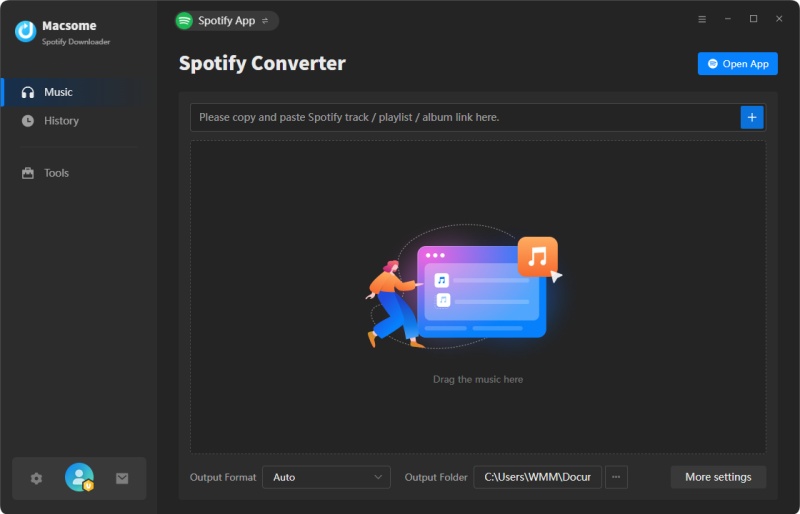
Click the "Settings" icon to customize the output settings. You can choose from MP3, AAC, WAV, AIFF, FLAC, or ALAC as the output format. For the best balance between audio quality and file size, you can keep the "Recommended" quality setting. You can also change the output folder to save your downloaded Spotify music wherever you prefer.
Step 3. Start Downloading Spotify Music
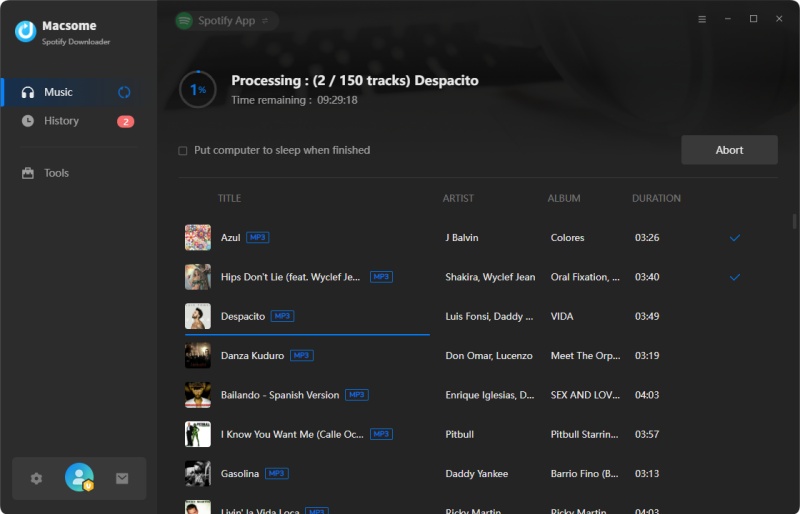
Once you have finished configuring the settings, click the "Convert" button to start downloading the selected Spotify songs or playlists.
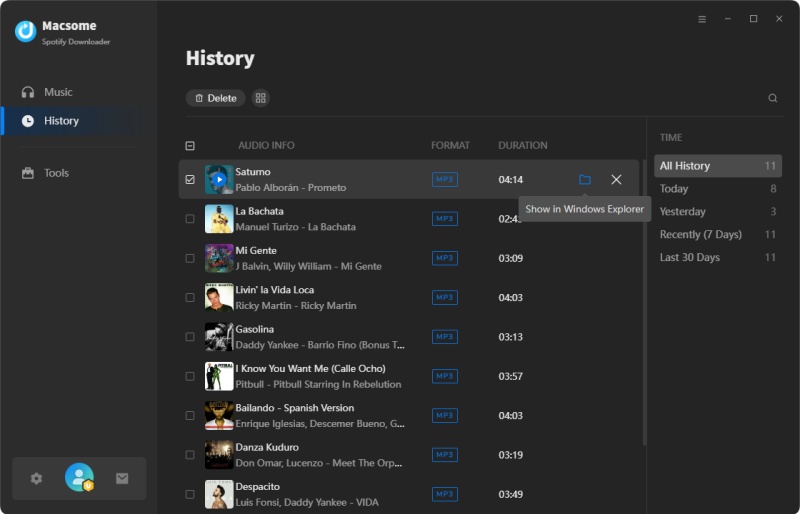
When the download is complete, open the "History" panel and click the "folder" icon next to a track to locate the downloaded Spotify songs. You can then transfer the downloaded music to your mobile device or other compatible devices and listen to Spotify music offline, including when you are traveling or in airplane mode.
What's Next?
Hopefully, this guide has taught you how to download Spotify songs with or without Premium so that you can play Spotify music in airplane mode at will. Undoubtedly, Macsome Spotify Downloader is an efficient tool that enables you to download Spotify music to MP3 or other common audio formats, no matter whether you are Spotify Premium or not, you can transfer Spotify songs to any device you have. Thus, you can play Spotify in airplane mode. It offers a free trial, which enables you to convert the first minute of each song. Download and have a free trial.