



 Wyatt Maxwell
"Tonies creative - how to put songs in it from Spotify? Is there a way to download some songs from Spotify to put on a creative tonie? I could play it on my phone and then record it with another phone but there would be background noise most likely." — Asked on Reddit's r/TonieboxUSA
Want to transfer Spotify music to Toniebox? The Toniebox is a screen-free audio player for children that plays stories, songs, and other audio through physical Tonies. However, the Toniebox doesn't support direct Spotify integration, so you can't play Spotify music directly on the device.
Fortunately, you can upload your own audio files to a Creative-Tonie through the mytonies app or website. While Spotify's offline downloads can't be uploaded directly, you can save Spotify songs as compatible audio files and upload them to your Creative-Tonie. Follow the steps below to bring your kids' favorite Spotify tunes to life on their Toniebox!
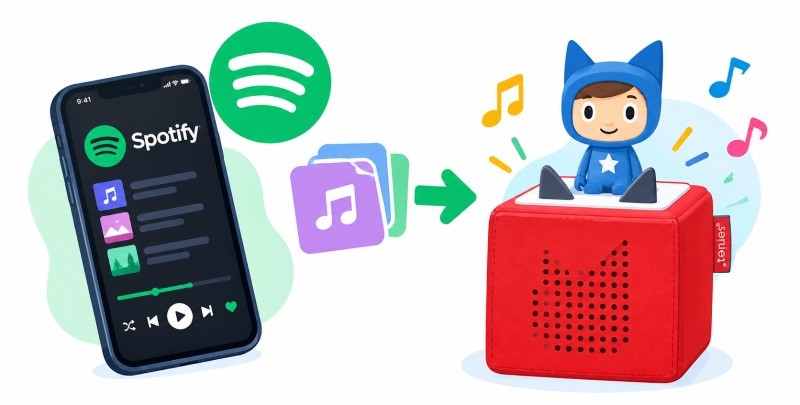
Part 1. Can You Play Spotify Music on Toniebox?
No, the Toniebox doesn't support direct Spotify integration. You can't link your Spotify account to the device or stream Spotify playlists directly. Spotify Premium downloads also can't be uploaded to a Creative-Tonie as ordinary audio files.
However, Creative-Tonies let you upload compatible audio files through your Tonies account, so you can customize your Toniebox with your own recordings, stories, and other audio content you have the right to use. To play Spotify songs on Toniebox, you'll first need to prepare compatible audio files for upload.
Here's the key difference:
- Spotify streaming: Spotify music can't be played directly on Toniebox.
- Spotify Premium downloads: These aren't ordinary audio files that you can upload to a Creative-Tonie.
- Creative-Tonie uploads: Compatible audio files can be uploaded through your Tonies account, subject to its file requirements and content restrictions.
Next, let's see how to prepare Spotify songs as compatible audio files for your Creative-Tonie.
Part 2. How to Download Spotify Music for Toniebox
To play Spotify music on a Creative-Tonie, you first need compatible audio files saved on your computer. You can then upload these files to your Creative-Tonie through your mytonies account. Tonies supports several audio formats, including MP3, AAC, and WAV, but Spotify's encrypted offline downloads cannot be uploaded directly.
Macsome Spotify Downloader lets you save Spotify tracks, playlists, audiobooks, and podcasts as common audio files, including MP3, AAC, WAV, FLAC, AIFF, and ALAC. It can also preserve track metadata, such as song titles, artists, and album information, depending on the available source data and settings. Once your audio files are ready, you can upload compatible files to your Creative-Tonie and enjoy your selected Spotify music on Toniebox.
Why Choose Macsome Spotify Downloader for Spotify to Toniebox?
- Download Spotify tracks, albums, and playlists as local audio files.
- Convert Spotify music to common formats, including MP3, AAC, WAV, FLAC, AIFF, and ALAC.
- Customize the available output quality settings, with MP3 quality up to 320 kbps.
- Batch process multiple tracks and playlists to prepare your music collection more efficiently.
- Preserve track metadata, such as titles, artists, and album artwork, where available.
- Save the resulting audio files to a local folder for easier access before uploading compatible files to your Creative-Tonie.
How to Prepare Spotify Music for Toniebox
Follow these steps to prepare compatible audio files for your Creative-Tonie. After saving the files to your computer, you can upload them through your mytonies account.
Step 1. Install and Launch Spotify Downloader. Download, install, and open Macsome Spotify Downloader on your Windows PC or Mac. Choose Spotify App Mode or Web Player Mode, depending on your preference and the options available in your version.
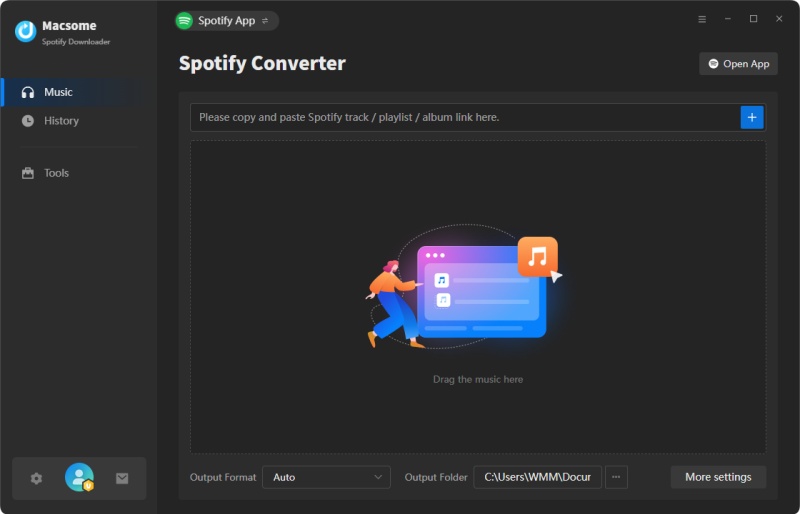
Step 2. Choose an Output Format. Open Settings and select an audio format supported by Creative-Tonie. MP3 is a practical choice for general compatibility. You can also choose another format supported by Tonies, such as AAC or WAV. Select your preferred audio quality and set a local Output Folder where the files will be saved.
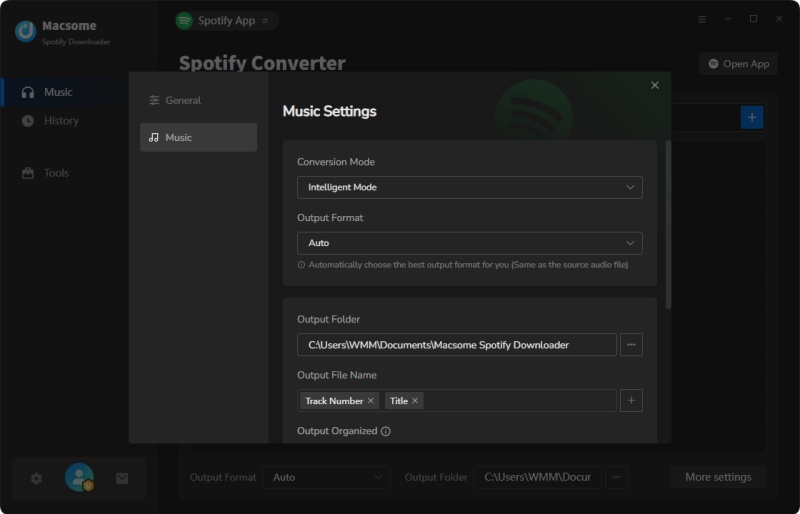
Step 3. Add Spotify Songs or Playlists. Open Spotify and find the tracks, albums, or playlists you want to prepare for your Creative-Tonie. Click Click to add to load the selected tracks into the program. Review the list and select the music you want to process.
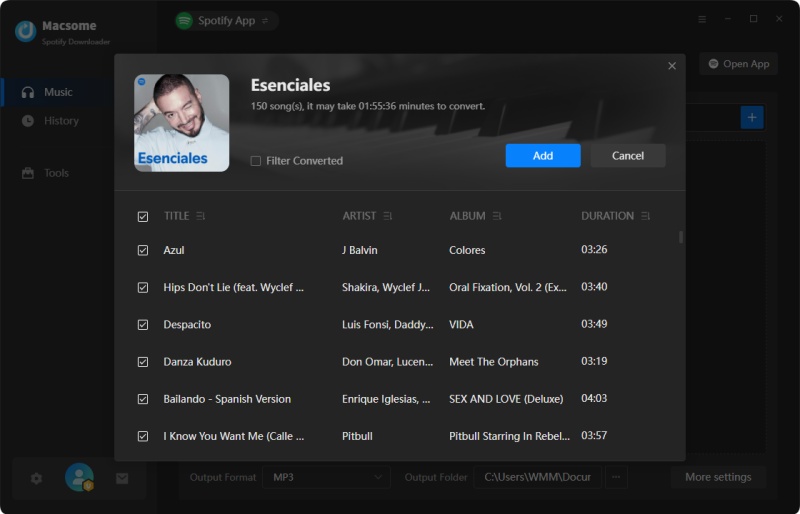
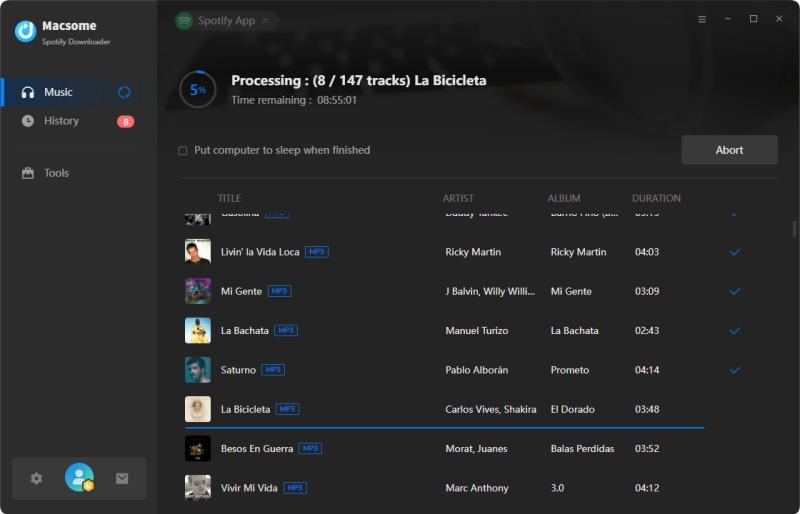
Step 4. Save the Audio Files. Click Convert to start processing the selected tracks. When the process finishes, open History and locate the files in your output folder. Check that the files play correctly and use a format accepted by Creative-Tonie before uploading them.
Part 3. How to Play Spotify Music on Toniebox with a Creative-Tonie
Now that your audio files are ready, you're one step closer to completing the Spotify to Toniebox process. Follow the steps below to upload your audio files to a Creative-Tonie and play them on your Toniebox.
Step 1. Sign In to Your mytonies Account. Visit the mytonies website and sign in to your account. Make sure your Toniebox and Creative-Tonie are registered to the account you're using.
Step 2. Select Your Creative-Tonie. Open your Creative-Tonie in your account and look for the option to manage or customize its audio content. Select the option to add or upload your own audio files.
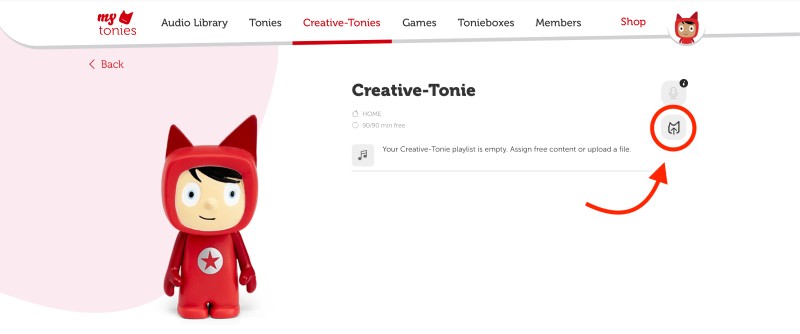
Step 3. Upload Your Spotify Audio Files. Choose the compatible audio files you prepared in Part 2 from your computer and upload them to your Creative-Tonie. You can add multiple files, allowing you to create a personalized collection of songs for your child. Make sure the files meet Tonies' current format and content requirements.
Step 4. Save Your Changes. After uploading your files, save the changes and wait for the upload to finish. Check that the tracks appear in your Creative-Tonie's content list before moving on to the next step.
Step 5. Sync Your Toniebox and Play Your Music. Turn on your Toniebox and make sure it is connected to Wi-Fi. Follow Tonies' instructions to sync the updated content to your device. Once the new audio has finished syncing, place your Creative-Tonie on the Toniebox to start playback.
That's it! You can now listen to the audio uploaded to your Creative-Tonie without streaming those tracks directly from Spotify. If the new music doesn't play, check your Wi-Fi connection, confirm that the upload completed successfully, and make sure the Toniebox has synced the latest content.
Part 4. FAQs about Toniebox Spotify
- Can you play Spotify directly on Toniebox?
- No. Toniebox does not support direct Spotify streaming or Spotify account integration. To listen to compatible audio on a Toniebox, you can upload audio files to a Creative-Tonie through your mytonies account.
- Can I download Spotify songs for Toniebox with Spotify Premium?
- Spotify Premium downloads are encrypted for playback within the Spotify app and cannot be uploaded directly to a Creative-Tonie. You need compatible audio files instead. Make sure you have the necessary rights or permission to use the music.
- What audio formats does Toniebox support?
- Creative-Tonie uploads support compatible audio formats such as MP3, depending on the current mytonies upload requirements. Check the supported formats and file limits in your mytonies account before uploading.
- How much music can a Creative-Tonie hold?
- The available storage is subject to Tonies' current upload limits. Check the latest Creative-Tonie specifications for the maximum audio duration and file restrictions before preparing a long playlist.
Conclusion
Although Toniebox doesn't support direct Spotify playback, you can still complete the Spotify to Toniebox process by preparing compatible audio files and uploading them to a Creative-Tonie through your mytonies account. This allows you to create a personalized collection of music for your child to enjoy anytime.
To simplify the audio preparation process, Macsome Spotify Downloader lets you convert Spotify tracks into common audio formats, including MP3, AAC, WAV, FLAC, AIFF, and ALAC. You can then upload compatible files to your Creative-Tonie, provided you have the necessary rights or permissions to use the content.
Ready to create your own Toniebox music collection? Download Macsome Spotify Downloader and get started today!