
Two Methods to Load your Local Music Files to Deezer
- Updated on Apr. 22, 2026
 Belinda Raman
- General, Spotify Tips
Deezer is a global music streaming service that allows users to access millions of songs from major record labels such as Sony Music, Universal Music Group, and Warner Music Group. It supports both online streaming and offline listening across a wide range of devices.
Compared with other platforms like Spotify and Apple Music, Deezer offers a rich music catalog with over 120 million tracks, along with thousands of curated playlists, podcasts, and radio channels. As of recent years, Deezer serves millions of users worldwide, with a strong presence in Europe and growing global availability.
Deezer is available on multiple platforms, including Web, Android, iOS, Windows, and macOS, as well as smart speakers, TVs, and in-car systems, making it easy to enjoy music anytime, anywhere.

Similar to Spotify, Deezer offers different subscription tiers, including Free and Premium plans. While free users can stream music with ads, Premium subscribers enjoy ad-free listening, offline downloads, and higher audio quality.
Deezer now provides high-quality audio streaming up to 16-bit/44.1 kHz FLAC (CD quality) within its Premium plan, allowing users to experience more detailed and lossless sound compared to standard compressed formats like MP3.
With a Deezer Premium subscription, users can download music for offline playback. Additionally, Deezer allows users to upload personal MP3 files through its "My Music" feature. However, there are certain limitations, such as supported file formats, file size restrictions, and upload methods.
In the following sections, we will introduce several effective methods to upload and manage local files on Deezer easily and efficiently.
Method 1. Directly load local MP3 files with your Deezer Premium account
Step 1. Open Deezer web page or desktop app and log into your Deezer account. Then click on the user name from the left panel to navigate the profile page.
Step 2. Navigate to "More" tab and choose "My MP3s".
Step 3. Click "Select MP3s" and start choosing the local MP3s files you would like to upload to Deezer.
Method 2. Load local music from Spotify to Deezer
Sometimes we don't directly save our music files on the computer. We save the Spotify music songs and create a unique playlist for yourself. Sometimes you want to move them from Spotify to Deezer, how to do.
Macsome Spotify Downloader can easily download and convert Spotify music songs and playlists to MP3, AAC, FLAC, WAV, AIFF and ALAC with fast speed and excellent output quality.
First of all, click the next download button to free download the latest version of Spotify Downloader, and double click to Launch it on Windows, and Spotify application will open automatically at the same time.
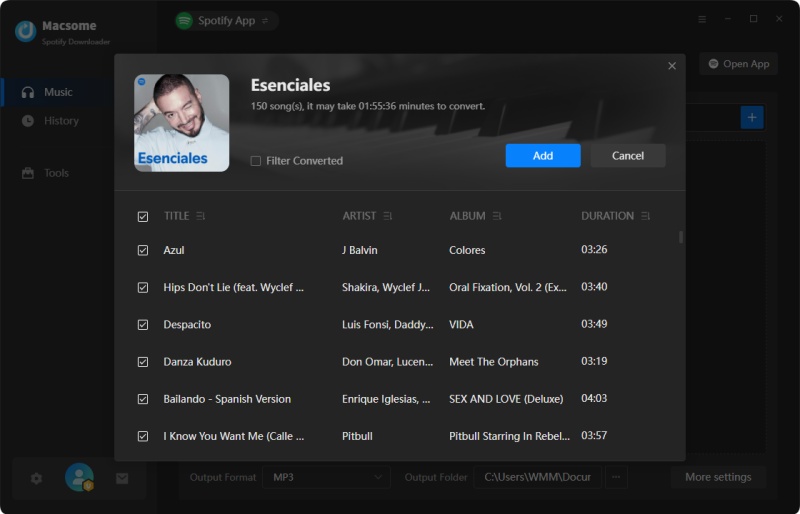
Step 1. Add Spotify Music to the program.
Click "+" icon to manually drag & drop any music file or playlist from Spotify into the program, then press "OK" button to add them. If you are a Mac user, please download the Spotify Downloader for Mac version.
Step 2. Choose Output Format.
Click setting button to set the output format and other related output settings. Here you can select format as MP3, AAC, FLAC or WAV and choose output quality up to 320kbps.
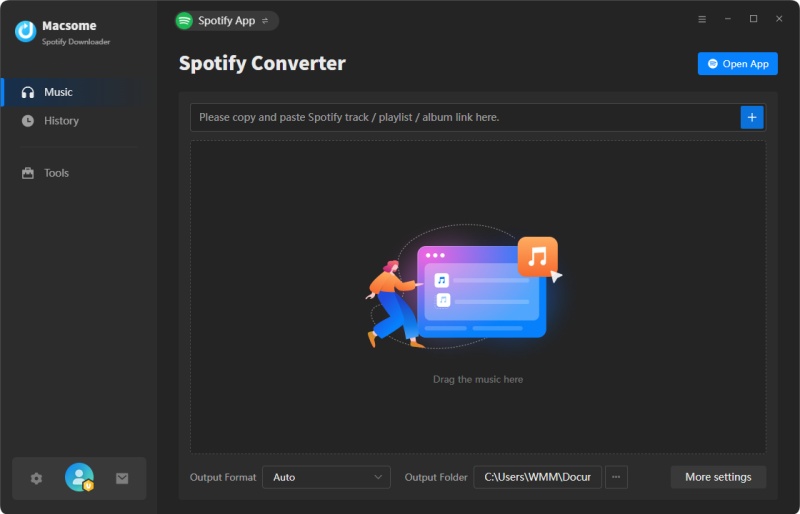
Step 3. Start to downloading music from Spotify.
When you compelte the above steps, you can click the "Convert" button to start downloading Spotify to MP3.
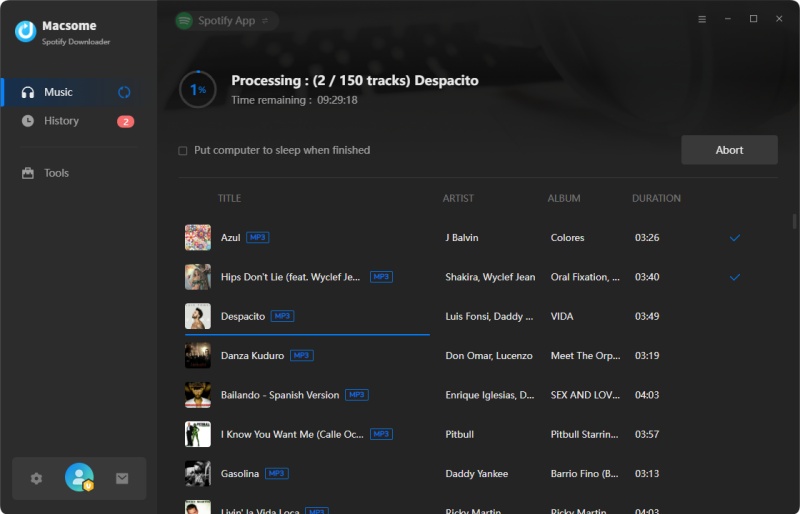
Step 4. Upload converted Spotify files to Deezer.
After conversion, find the converted files and then go to Deezer.com (premium account is needed) on computer - Click My Music - Tap the More tab - Tap My MP3s - Select the downloaded MP3 files from computer for uploading the downloaded Spotify playlists to Deezer.
Conclusion
Whether you load the local MP3 files or protected Spotify music songs, the guide will help you solve the both problems.