
How to Transfer Spotify Playlists to Apple Music
- Updated on Apr. 22, 2026
 Wyatt Maxwell
- General, Spotify Tips
Many users switch from Spotify to Apple Music for its seamless integration with iOS and macOS, support for Lossless and Spatial Audio, and a unified music library with iTunes and local files. Instead of rebuilding playlists manually, transferring Spotify playlists to Apple Music is a faster and more efficient solution.
This guide explains how to transfer Spotify playlists to Apple Music using both online tools and an offline method, helping you move your music quickly and keep full control of your library.
Method 1. Transfer Spotify Playlists to Apple Music Using Online Tools
Some online playlist transfer tools, such as Soundiiz and TuneMyMusic, are the fastest way to move playlists between Spotify and Apple Music without installing software.
Step 1. Select Spotify as a source.
Use your current Spotify platform as a source and start to transfer playlists music with Soundiiz.
Step 2. Select Apple Music as a destination.
Select Apple Music as a platform where you want to create a new playlist. All you need to do is just one button click!
Step 3. Select playlists for a transfer.
Find playlists, albums or tracks you want to transfer from Spotify service to Apple Music and select all the music you want to move. Once the transfer is finished, your Spotify songs and playlists have been moved to Apple Music and you can start enjoying your new music streaming service.
Method 2. Transfer Spotify Playlists to Apple Music Using PlaylistGo
PlaylistGo is a simple web-based tool designed for transferring playlists between music streaming services. With PlaylistGo, you can easily transfer your favorite songs, albums, or entire playlists from Spotify to Apple Music in just a few clicks. Follow the steps below to get started.
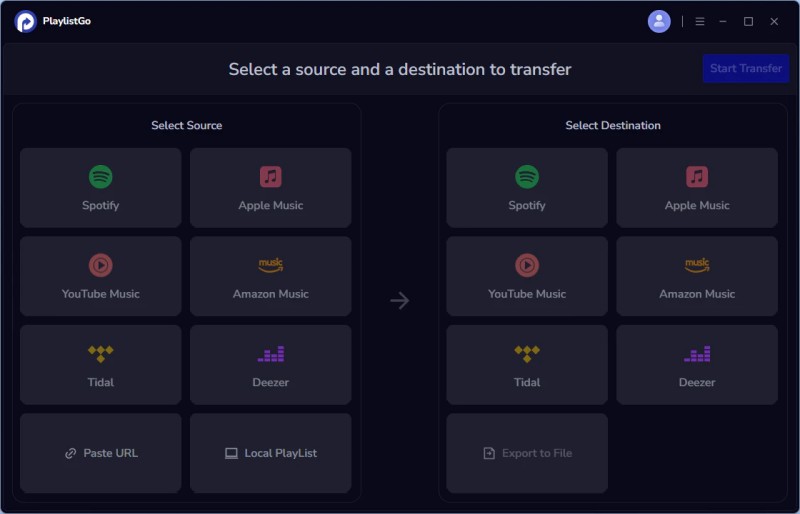
Step 1. Launch PlaylistGo to Enter Main Interface
Download, install, and open PlaylistGo on your computer.
Step 2. Select Spotify as the Source Platform
Select Spotify as your source platform to log in, and PlaylistGo will display your library so you can select what to transfer. You can also transfer playlists using a URL. Simply copy and paste the playlist URL into the text box and click Parse to load it.
Step 3. Select Apple Music as the Target Platform
Click your target platform to log in.
Step 4. Select the Song/Album/Playlist You Want to Transfer
Select the songs, albums, or playlists from Spotify that you want to transfer. Click the "Start Transfer" button. PlaylistGo will search for matching songs on the Spotify and display the results for confirmation.
Step 5. Start to Transfer Your Spotify Playlist to Apple Music
Click the "Transfer Settings" button on the right to start matching songs. Click "Next" to begin. PlaylistGo will transfer the selected music from the source platform to the specified location on the target platform.
Method 3. Use Macsome Spotify Music Downloader to Download Spotify Playlist
Most online tools and services, such as PlaylistGo, do not truly transfer Spotify playlists. Instead, they rely on cross-platform song matching, which can result in inaccurate transfers, missing tracks, or incorrect song versions in Apple Music.
These limitations are more apparent with large playlists, rare tracks, live recordings, or region-restricted songs, where automatic matching often fails. As a result, users may need to manually review and fix their Apple Music playlists after the transfer, which undermines the goal of saving time. If accuracy and completeness are important, a more reliable solution is needed—one that preserves the original playlist structure and avoids song loss.
For users who want a complete and accurate transfer, downloading Spotify playlists as local files and importing them into Apple Music is a more dependable approach. This method ensures that every track is preserved and gives you full control over your music library. Macsome Spotify Music Downloader provides a professional solution by converting Spotify songs and playlists with high output quality and fast conversion speed.

Macsome Spotify Music Downloader
- Download Spotify music and playlist with high quality .
- Convert Spotify songs to MP3, AAC, WAV, FLAC, AIFF, and ALAC.
- Support batch downloading at fast speed.
- All the ID3 tags will be preserved.
- Transfer downloaded Spotify files to USB or any device.
- Free updates and technical support.
- Simple, concise, and user-friendly.
Steps to Download Spotify Playlist and Sync to Apple Music
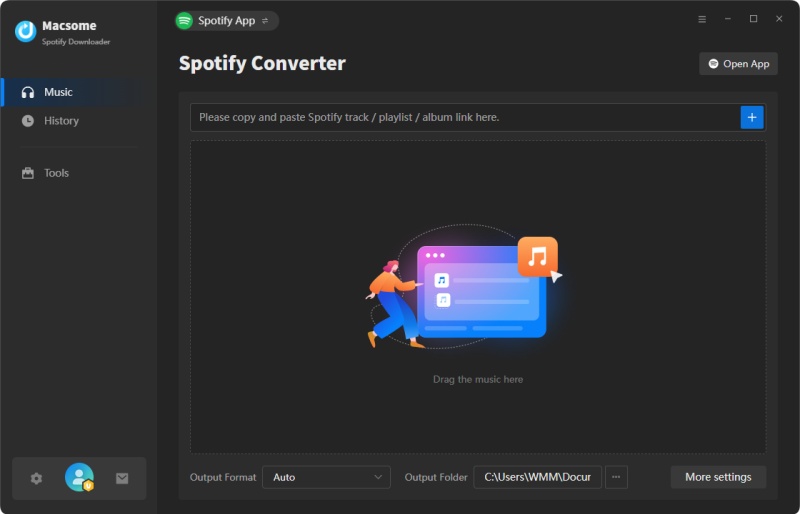
Step 1. Download, install and launch Macsome Spotify Downloader on your PC.
According to your system, download the corresponding version of Macsome Spotify Music Downloader, and follow the tips to install on your computer. When the installation is complete, click to launch it, and you will see the next user interface. Here we take Windows version for example.
Step 2. Import the song or playlist from Spotify to the program.
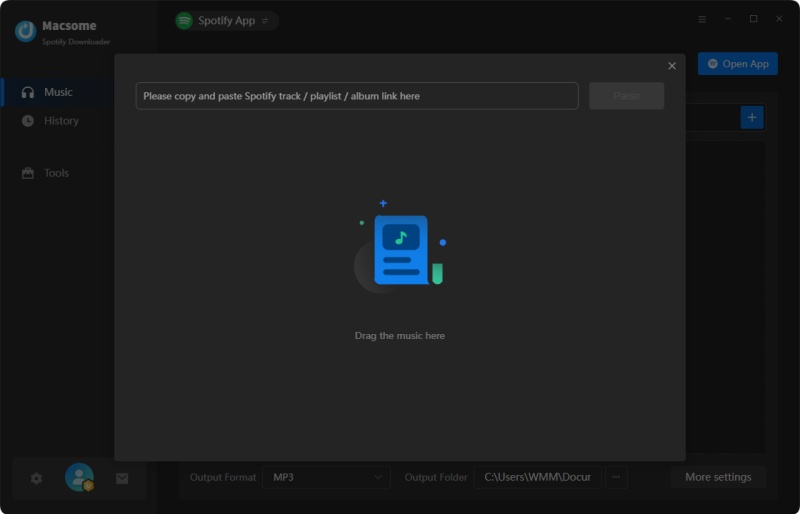
Choose to download music from the Spotify app. Open Spotify application, check the songs or playlist you would like to convert, then drag and drop them to add window.
In addition, you can also directly copy and paste the link of a song or playlist to the clipboard.
Step 3. Output settings.
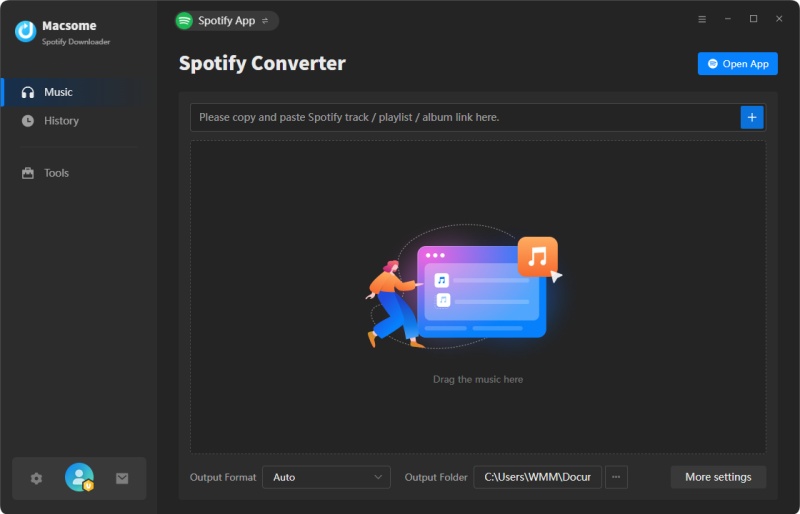
Now move to the lower left corner of the interface and click the settings button. Now you can customize your output parameters as you like. Here we choose MP3 as the output format.
Step 4. Start to download Spotify playlist.
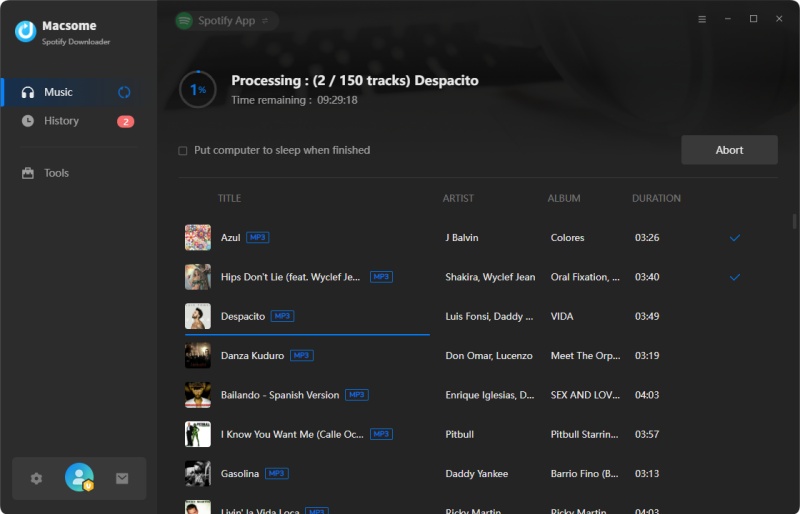
When the above setting is completed, you can click "Convert" button to start converting Spotify playlist. After the conversion, click the "History" tab to find the converted Spotify songs. And you can locate them on your computer by clicking the "folder" icon after each track.
Step 5. Transfer Spotify Playlists to Apple Music.
Open Apple Music, and import the downloaded songs to create a new playlist. And then you can enjoy them without limitations any more.
Conclusion
There are several ways to transfer Spotify playlists to Apple Music depending on your needs. Online tools like Soundiiz works well for users who want a quick transfer, while PlaylistGo offers a simple web-based solution but may miss some tracks. For a reliable and complete transfer, Macsome Spotify Music Downloader lets you download Spotify playlists as local files, preserving all tracks, metadata, and audio quality. With Macsome, you can enjoy your Spotify playlists on Apple Music or any other platform without missing a beat. Choose the method that fits your needs and make your playlist transfer fast, accurate, and hassle-free.