


 Wyatt Maxwell
SpotiDownloader is a free online tool that allows users to download Spotify tracks, albums, and playlists without installing additional software. But is SpotiDownloader safe, and how well does it actually work? In this SpotiDownloader review, we put the tool to the test, examining its features, ease of use, audio quality, download speed, success rate, and potential security risks. We'll also look at its limitations and whether it's a reliable option for downloading Spotify music or if a better alternative is worth considering.
Part 1. What is SpotiSongDownloader
🌐 SpotiDownloader.com
Recommendation: ★★★★☆ (4/5)
SpotiDownloader is a web-based tool for downloading Spotify music as MP3 files. It supports individual tracks as well as batch downloads of entire albums and playlists, with multiple tracks packaged into a single ZIP file. Everything is handled online, so there's no need to install desktop software.
Key Features of SpotiDownloader
Here are the main features of SpotiDownloader:
- ✅ Free online Spotify downloader that works directly in a web browser without desktop installation.
- ✅ Supports downloading individual Spotify tracks, albums, and playlists.
- ✅ Offers MP3 output with an overall bitrate of up to 320 kb/s, as confirmed by our MediaInfo tests.
- ✅ Supports batch playlist downloads, allowing multiple tracks to be saved in one process.
- ✅ Downloads song and album cover artwork at up to 640 × 640 pixels.
- ✅ Preserves basic metadata, including track titles, artists, album names, and release years.
Pros and Cons of SpotiDownloader
Before getting into our hands-on tests, here's a quick overview of SpotiDownloader's main advantages and limitations.
Pros
- Completely free to use, with no desktop software installation required.
- Supports individual track, album, and playlist downloads.
- MP3 output with an overall bitrate of up to 320 kb/s.
- Downloads song and album artwork at up to 640 × 640 pixels.
- Relatively fast download speed for individual tracks.
- High download success rate in our individual track and playlist tests.
- Preserves basic ID3 metadata, including titles, artists, albums, and release years.
Cons
- Actual audio quality is inconsistent despite the 320 kb/s output bitrate.
- Some buttons may trigger redirects to unfamiliar third-party websites.
- CAPTCHA verification may be required during the download process.
- Downloaded filenames contain SpotiDownloader.com branding.
- Long track titles may be truncated in downloaded filenames.
- Limited output format choices and customization options.
Part 2. How to Use SpotiDownloader to Download Spotify Music
One of SpotiDownloader's main selling points is its straightforward online interface. You don't need to install an application or configure complicated settings. Here's how to use it to download individual Spotify tracks and entire playlists.
2.1 How to Download a Single Spotify Track
Follow these steps to download an individual Spotify song using SpotiDownloader:
Step 1. Copy a Spotify Track Link: Open Spotify and find the song you want to download. Click the three-dot menu next to the track, select Share, and then choose Copy Song Link.
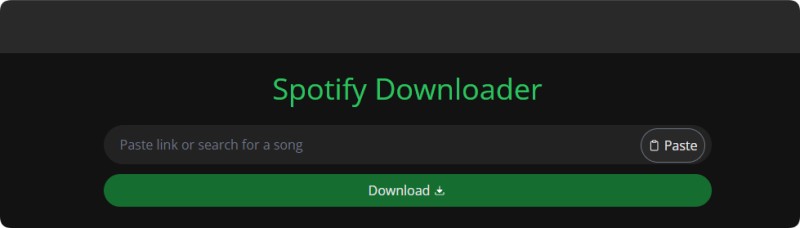
Step 2. Visit the SpotiDownloader Website: Open the SpotiDownloader website in your browser. Paste the copied Spotify URL into the search box and click the "Download" button.
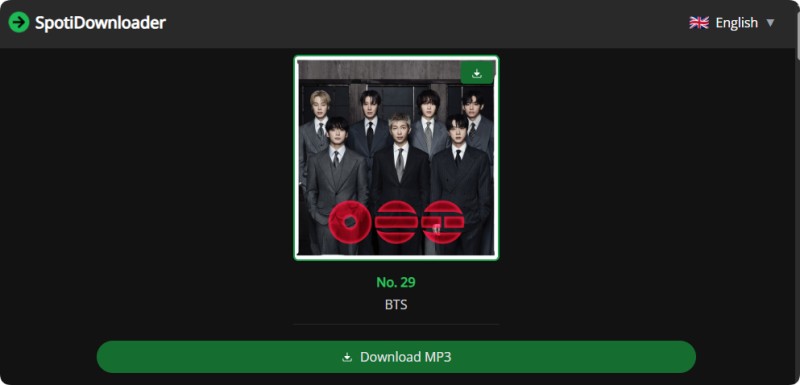
Step 3. Download the MP3 File: After clicking "Download", you will be prompted to solve a captcha to continue. Once the download option appears, click the "Download MP3" to converting song to MP3, after conversion, please click this button again to save the MP3 file to your computer.
2.2 How to Download a Spotify Album or Playlist
SpotiDownloader also supports downloading multiple songs from Spotify albums and playlists.
Step 1. Copy an Album or Playlist Link: Open Spotify, navigate to the album or playlist you want to save, click the three-dot menu, and select Share > Copy Link.
Step 2. Paste the Link into SpotiDownloader: Visit SpotiDownloader and paste the copied album or playlist URL into the input box. Click the "Download" to process the link.
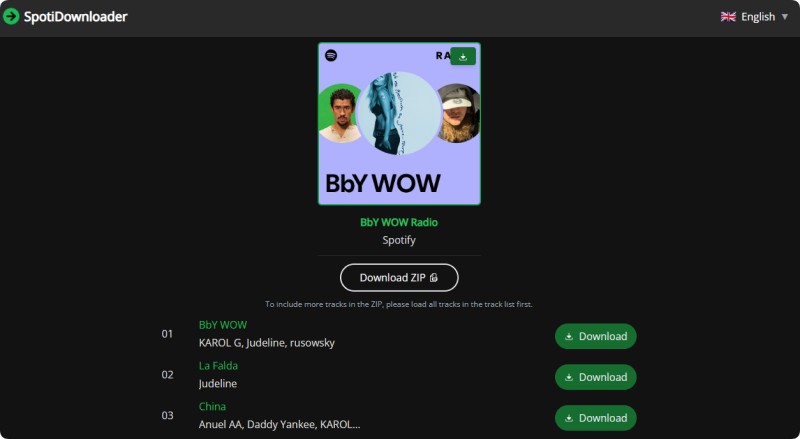
Step 3. Process the Playlist: Click the "Download ZIP" button to to retrieve the available tracks. Depending on the playlist size and server response, this process may take some time.
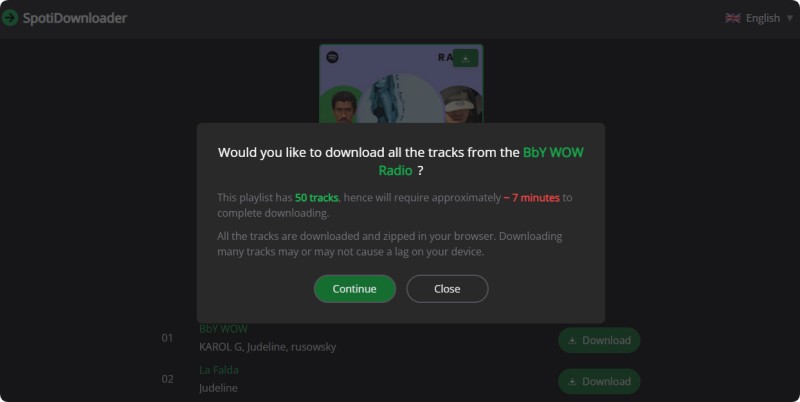
Step 4. Download the ZIP File: Once processing is complete, click the "Download ZIP" to download the ZIP archive containing the available MP3 files. Extract the archive to access your downloaded songs.
Part 3. SpotiDownloader Review [Tested]: Audio Quality, Speed & Download Performance
A downloader's actual performance matters more than its feature list. We tested SpotiDownloader with individual tracks, a 14-song album, and two 50-song playlists to evaluate its audio quality, download speed, success rate, and metadata preservation. Here are our findings.
3.1 Audio Quality: Does SpotiDownloader Really Download 320kbps MP3?
We downloaded several tracks using SpotiDownloader and checked the resulting MP3 files with MediaInfo. The results showed an overall bitrate of 320 kb/s, confirming that SpotiDownloader supports 320kbps MP3 downloads.
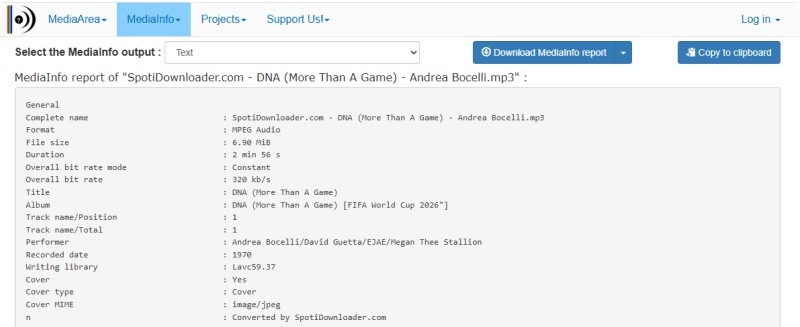
However, a 320kbps bitrate doesn't necessarily guarantee high audio quality. Our spectrum analysis revealed high-frequency cutoffs in some tracks, suggesting that the source audio may have been previously compressed or obtained from lower-quality sources. Listening tests also revealed that some tracks lacked the bass definition and high-frequency detail of the original Spotify streams.
Our verdict: SpotiDownloader supports 320kbps MP3 output, but the actual audio quality varies depending on the source. A higher output bitrate cannot restore audio details lost during previous compression.
3.2 Download Speed
We tested the download speed with a single track, a 14-song album, and a 50-song playlist. Here are the results:
| Test | Download Time |
|---|---|
| Single track (3:17) | About 8 seconds |
| 14-song album | About 2 minutes 29 seconds |
| 50-song playlist | About 9 minutes 4 seconds |
SpotiDownloader performed reasonably well in our tests. A 3-minute-and-17-second track took only about 8 seconds to download, while a 14-song album took approximately 2 minutes and 29 seconds. Downloading a larger 50-song playlist took around 9 minutes and 4 seconds.
Overall, SpotiDownloader offers decent download speeds for a free online tool, particularly when downloading individual tracks. However, actual download times may vary depending on your internet connection, server response time, and the size of the files being downloaded. Users with slower or unstable internet connections may experience longer download times.
3.3 Download Success Rate
We also checked whether SpotiDownloader could successfully download all the selected songs. We tested individual tracks, one 14-song album, and two 50-song playlists.
| Test | Successfully Downloaded | Success Rate |
|---|---|---|
| Individual tracks | All tested tracks | 100% |
| 14-song album | 14/14 | 100% |
| 50-song playlist 1 | 45/50 | 90% |
| 50-song playlist 2 | 50/50 | 100% |
The results were generally positive. Individual tracks and the 14-song album were downloaded successfully, while the two 50-song playlists achieved a combined success rate of 95% (95 out of 100 tracks).
This suggests that SpotiDownloader is fairly reliable for downloading individual songs and albums. However, larger playlists may occasionally contain missing tracks, so it's worth checking the downloaded files before deleting the original playlist links.
3.4 Metadata & File Completeness
We also checked the downloaded files to see whether SpotiDownloader preserved song information and album artwork.
- ID3 Tags: Downloaded tracks retained basic metadata, including title, artist, album, album artist, and release year.
- Album Artwork: SpotiDownloader also supports downloading album cover art and embedding it in the music files.
- File Naming: Both ZIP archives and individual song filenames include "SpotiDownloader.com". Album folders, however, retain only the album name.
- Filename Limitations: Long song titles may be truncated, causing some information at the end of the filename to be lost.
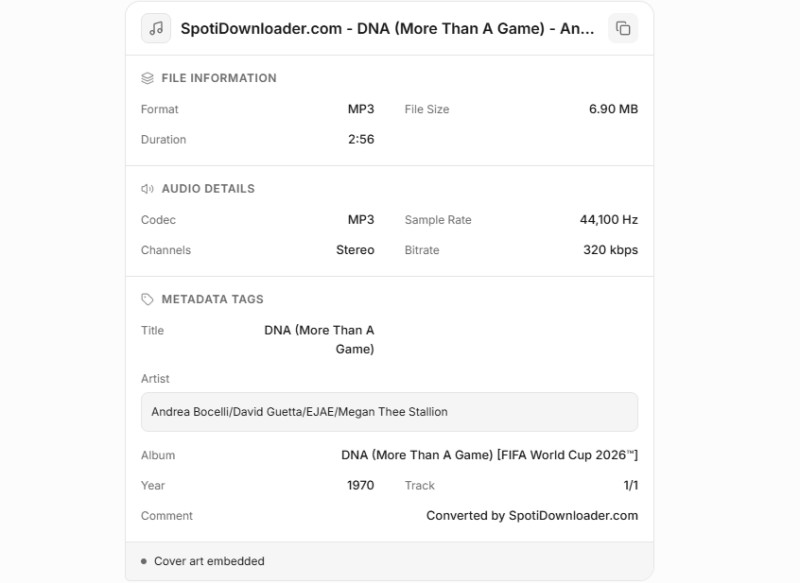
Our verdict: SpotiDownloader preserves most basic music information and supports album artwork, which is useful for organizing downloaded tracks. However, the added website branding and truncated filenames are minor drawbacks.
Part 4. Part 4. Is SpotiDownloader Safe to Use?
Is SpotiDownloader safe? Since it is a free online tool that doesn't require software installation, you may wonder whether the website is trustworthy and whether its downloaded files are safe. We looked at the website's security, download process, and potential risks to help you make an informed decision.
4.1 Does SpotiDownloader Contain Ads or Pop-ups?
Free online downloaders often rely on advertising to support their services. When using SpotiDownloader, pay attention to pop-up windows, redirects, and misleading download buttons. Avoid clicking unfamiliar ads or buttons that ask you to install additional software or browser extensions.
4.2 Are Files Downloaded from SpotiDownloader Safe?
Before opening downloaded files, check their file extensions and scan them with reliable antivirus software if necessary. Be cautious if a download redirects you to an unfamiliar website or provides an executable file instead of the expected audio format.
4.3 Does SpotiDownloader Protect Your Privacy?
SpotiDownloader works online, so you don't need to install a desktop application to use it. However, this alone doesn't guarantee that your browsing activity or submitted Spotify links are not collected. Review the website's privacy policy before using the service, especially if you are concerned about how your data is handled.
Our verdict: SpotiDownloader is convenient because it works directly in a browser, but users should still be cautious of ads, redirects, and unexpected downloads. Avoid providing sensitive personal information or installing anything the website prompts you to download.
Part 5. Best SpotiDownloader Alternative: Macsome Spotify Downloader
For occasional MP3 downloads, SpotiDownloader may be all you need. It's quick to access and doesn't require installing software. If you're happy with its audio quality and basic download options, there's little reason to switch. However, if you download music regularly or need more flexibility in audio formats, playlist management, or file organization, a desktop tool may be a better fit.
That's where Macsome Spotify Downloader comes in. It lets you download Spotify tracks, albums, playlists, podcasts, and audiobooks to MP3, AAC, WAV, FLAC, AIFF, or ALAC. It also preserves key ID3 tags, including title, artist, album, track number, genre, and year, making it easier to organize your music library.
Another advantage is a cleaner downloading experience. Unlike some free online converters that rely on pop-up ads, advertising redirects, or multiple download pages, Macsome provides a straightforward desktop interface without those distractions. You can also try the software before deciding whether to purchase a license.
Key Features of Macsome Spotify Downloader
- Download Spotify tracks, playlists, albums, podcasts, and audiobooks.
- Convert Spotify content to MP3, AAC, WAV, FLAC, AIFF, or ALAC.
- Download music through either the Spotify desktop app or built-in web player.
- Batch download entire playlists and albums at speeds of up to 40x.
- Customize audio quality with an output bitrate of up to 320 kbps.
- Keep essential ID3 tags, including title, artist, album, track number, year, and cover art.
- Organize your music with built-in CD burning, audio conversion, and Apple Music import tools.
- Works with both Spotify Free and Premium accounts.
Step-by-Step Guide to Download Spotify Music with Macsome
Step 1. Launch Macsome Spotify Downloader
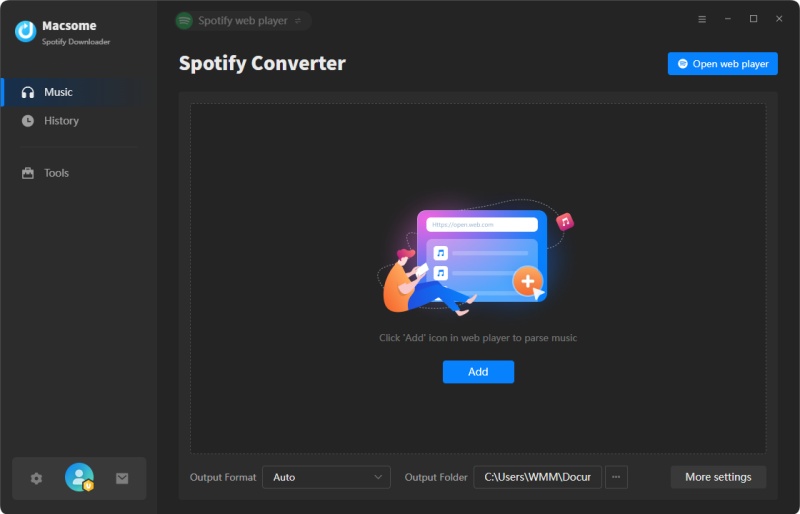
Download and install Macsome Spotify Downloader on your Mac or Windows computer, then launch the program. The built-in Spotify web player will open automatically. Sign in to your Spotify account to access your playlists, albums, and other music.
Step 2. Add Spotify Music to Macsome
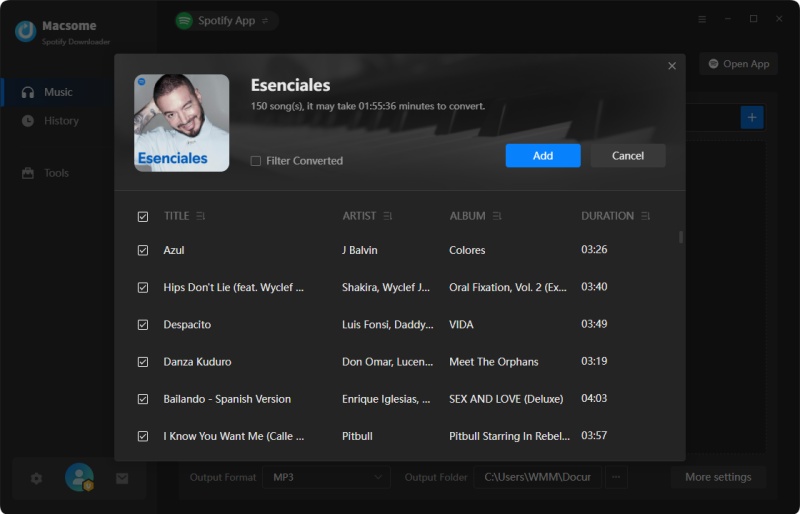
Find the playlist or album you want to download in the built-in web player. Click Click to add to load its tracks, then select Add to import them into the conversion list. Want to download more than one playlist or album? Use Add More to add multiple collections without repeating the process one by one.
Step 3. Choose the Output Format and Quality
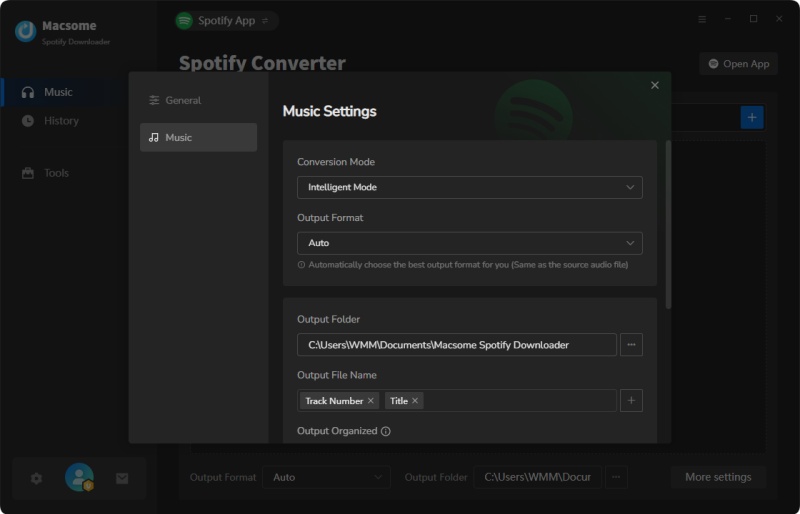
Open Settings and select your preferred output format: MP3, AAC, WAV, FLAC, AIFF, or ALAC. You can also adjust the audio bitrate (up to 320 kbps), customize file names, and choose where to save the downloaded music.
Step 4. Start Downloading Spotify Music
After configuring your settings, click Convert to begin. Macsome will process the selected tracks and save them in your chosen format and output folder. You can add multiple playlists or albums to the list and download them together.
Step 5. Find Your Downloaded Spotify Music
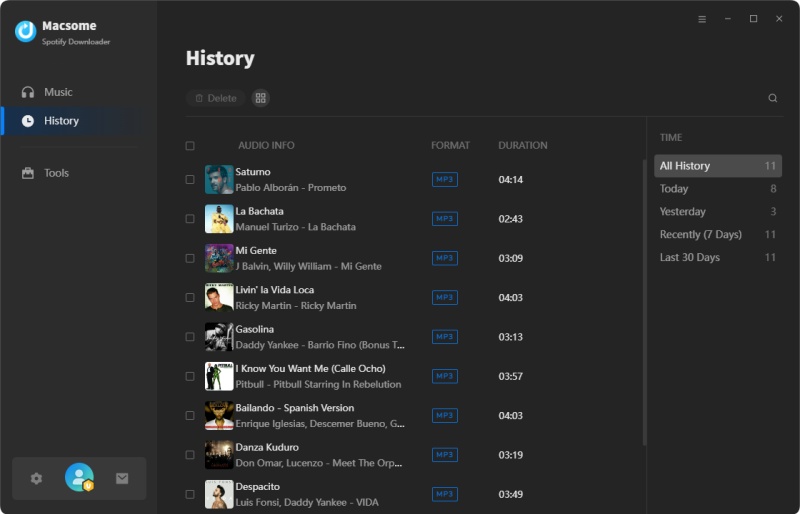
When the download is finished, open the History tab to view your completed downloads. Click the Folder icon next to a track to open its saved location. Your downloaded audio files are ready to play or transfer to compatible devices.
Part 6. SpotiDownloader vs. Macsome Spotify Downloader
Both tools can download Spotify music, but they serve different needs. SpotiDownloader is a browser-based option for quick MP3 downloads, while Macsome Spotify Downloader offers more formats and advanced music management features.
| Features | SpotiDownloader | Macsome Spotify Downloader |
|---|---|---|
| Platform | Web browser | Windows and macOS |
| Installation | Not required | Required |
| Price | Free | Free trial and paid plans |
| Output Formats | MP3 | MP3, AAC, WAV, FLAC, AIFF, ALAC |
| Audio Quality | Up to 320 kbps MP3; actual quality depends on the source | MP3 up to 320 kbps; also supports lossless output formats |
| Batch Downloads | Tracks, albums, and playlists | Tracks, albums, playlists, podcasts, and audiobooks |
| ID3 Tags | Preserves basic track information | Preserves and edits ID3 tags |
| Album Artwork | Supports album cover art | Preserves album artwork in downloaded files |
| Download Management | Browser-based downloads | Dedicated download interface and customizable output folder |
| Best For | Quick, occasional MP3 downloads without installing software | Batch downloading, format flexibility, and music library management |
Our verdict: SpotiDownloader is a practical choice for users who want to download a few Spotify tracks as MP3 files without installing software. However, its format options and download management features are limited. Macsome Spotify Downloader is better suited to users who regularly download music, need multiple output formats, or want to manage larger music collections with editable ID3 tags.
Part 7. FAQs About SpotiDownloader
- Is SpotiDownloader free?
- Yes. SpotiDownloader offers free online Spotify downloads without requiring you to install desktop software. However, the website also provides an optional paid donation plan for an ad-free experience. The basic download features can be used without purchasing it.
- Is SpotiDownloader legit?
- SpotiDownloader is a third-party online service, not an official Spotify product. It can be used to process Spotify links, but this does not automatically guarantee that every download is safe or that every use is legally permitted. During our testing, we noticed redirect behavior, so check the destination URL carefully and avoid unfamiliar pop-ups or download buttons.
- Does SpotiDownloader require Spotify Premium?
- No. You don't need a Spotify Premium subscription to use SpotiDownloader. You can submit supported Spotify links without a paid Spotify account. However, downloading copyrighted music may still be subject to copyright laws and the rights holders' terms.
- Does SpotiDownloader work on mobile?
- Yes. Since SpotiDownloader is browser-based, you can access it through a web browser on an iPhone, iPad, or Android device without installing a dedicated downloader app. The exact download and file-saving experience may vary depending on your browser and device.
Conclusion: Is SpotiDownloader Worth Using?
After testing SpotiDownloader, we found it to be a fairly capable free online Spotify downloader. It requires no software installation, supports individual track and batch downloads, and delivered a 95% success rate across our two 50-song playlist tests. Its download speed was also reasonable, making it a convenient option for saving Spotify music as MP3 files.
However, SpotiDownloader does have some limitations. It only supports MP3 output, not other formats such as WAV or FLAC. Not all Spotify content may be available for download, and occasional advertising or redirects can interrupt the process. Audio quality can also vary depending on the source, even when the downloaded MP3 files show a 320 kbps bitrate.
Overall, SpotiDownloader is worth trying if you want a free, browser-based tool for downloading individual songs, albums, or playlists without installing extra software. If you need more output formats, greater control over audio settings, or additional features for managing your music collection, Macsome Spotify Downloader is a more flexible alternative. It supports MP3, AAC, WAV, FLAC, AIFF, and ALAC, along with batch downloads, ID3 tag editing, and album artwork preservation. You can try its free version before purchasing.
Our verdict: SpotiDownloader is a solid choice for occasional free Spotify MP3 downloads, especially considering its batch-download support and relatively high success rate. Macsome Spotify Downloader is better suited to users who want more format choices and advanced download and library management features.