



 Russell Doe
Is there a way to download all my music at once? Is there a way to download all my music from my songs library all at once? Instead of clicking each song individually?
— Question from the Apple Music community on Reddit
If you have a large Apple Music library, downloading songs one by one can quickly become a tedious task. Whether you want to download your entire library for offline listening or save your Apple Music collection as local files, a bulk-download option can save a lot of time.
So, can you download all songs on Apple Music at once? The answer depends on what you want to do with the downloaded music. Apple Music provides several built-in ways to download songs, albums, and playlists in bulk, while a dedicated converter can help when you need to save your music locally.
Once your songs are downloaded, you can listen to them offline, keep your music collection organized locally, and access your favorite tracks without opening Apple Music every time. In this guide, we'll show you how to download all songs on Apple Music and save your music for more flexible use.
Part 1. Can You Download All Songs on Apple Music at Once?
Yes, but not with a single "Download All" button. Apple Music lets you download songs, albums, and playlists for offline listening. If you have a large music library, you can also select multiple songs at once on a Mac or Windows PC, or use a playlist to download a large collection more efficiently.
However, there is an important difference between your Apple Music Library and the entire Apple Music catalog. You can download the songs, albums, and playlists you've added to your Library, but you cannot download Apple's entire catalog at once. In addition, Apple Music downloads are intended for offline playback within the Apple Music app rather than as regular MP3 files that you can freely manage or transfer.
Official Reality Check
| What You Want to Download | Possible? |
|---|---|
| Individual songs from Apple Music | Yes |
| Complete albums | Yes |
| Complete playlists | Yes |
| Your Apple Music Library |
Yes Using desktop bulk selection or playlists |
| Apple Music's entire catalog | No |
| Apple Music subscription songs as regular MP3 files | No |
Part 2. How to Download All Songs on Apple Music at Once
The easiest way to download all songs on Apple Music at once depends on how your music is organized and which device you use. On a Mac or Windows PC, you can select multiple songs from your Library and download them in bulk. You can also use playlists or Smart Playlists to organize a large collection before downloading it for offline listening.
Method 1. Select All Songs to Download Your Apple Music Library
If you want to download a large Apple Music Library at once, the desktop app provides one of the most direct methods. You can open the Songs section, select multiple tracks, and download them together instead of downloading each song individually. Apple currently supports downloading music that you have added to your Library on Mac and Windows.
- Open Apple Music and go to your Library. On your Mac or Windows PC, open the Apple Music app and select Songs under Library.
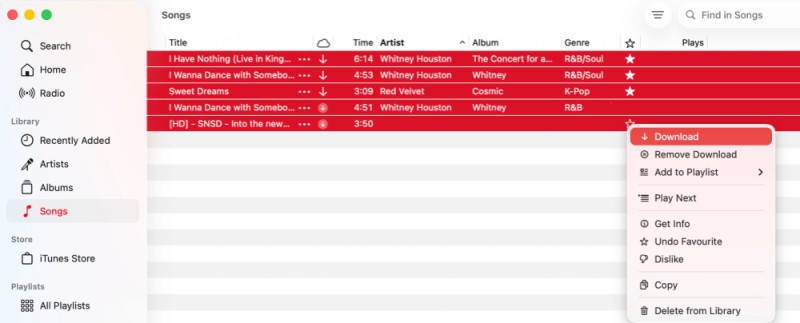
- Select the songs you want to download. Click a song in the list. To select all songs currently shown, press Command + A on Mac or Ctrl + A on Windows.
- Choose Download. Right-click the selected songs and choose Download. Apple Music will start downloading the selected tracks for offline listening.
- Wait for the downloads to finish. For a large Library, the process may take some time and use considerable disk space. Make sure your computer has enough free storage before starting.
Method 2. Create a Playlist to Download Multiple Apple Music Songs
If you prefer to organize your songs before downloading them, you can create a regular playlist and add the songs you want to keep offline. This can be useful when you want to download a specific collection rather than your entire Library.
- Create a new playlist. Open Apple Music on your Mac or Windows PC and create a new playlist from your Library.
- Add songs to the playlist. Add the songs you want to download to a new playlist. This allows you to organize a large collection in one place before downloading.
- Open the playlist. Find the playlist under Playlists and review the songs to make sure the collection is complete.
- Download the playlist. Click the Download button to download the songs in the playlist for offline listening.
A regular playlist is useful when you want to control exactly which songs are downloaded. If you want the playlist to update automatically as your Library changes, a Smart Playlist can be a better option.
Method 3. Download Your Library with a Smart Playlist
A Smart Playlist can automatically collect songs based on rules you specify. This makes it useful for managing a large Apple Music Library and keeping a specific collection together for offline downloads. Smart Playlists can also update automatically when new songs meet your selected criteria.
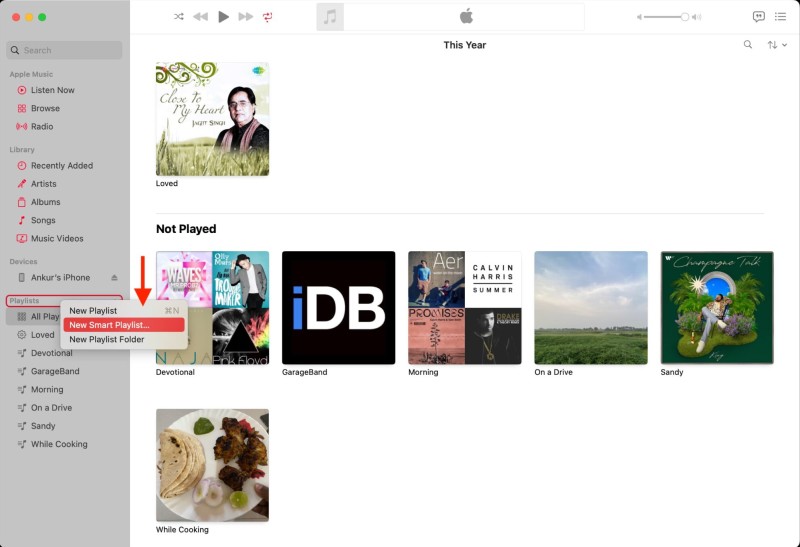
- Create a Smart Playlist. Open Apple Music and create a new Smart Playlist. Set the rules to match the songs you want to include.
- Set the playlist criteria. Adjust the rules so that the Smart Playlist includes the songs from your Library that you want to manage as a group.
- Review the Smart Playlist. Open the playlist and check that the songs included match your requirements.
- Download the playlist. Select the Smart Playlist and choose Download to make the included songs available offline.
Method 4. Turn On Automatic Downloads for New Apple Music Songs
If you regularly add music to your Apple Music Library, Automatic Downloads can help keep newly added songs available offline. This method is useful for future additions rather than downloading your existing Library all at once.
- Open Settings. On your iPhone or iPad, open the Settings app.
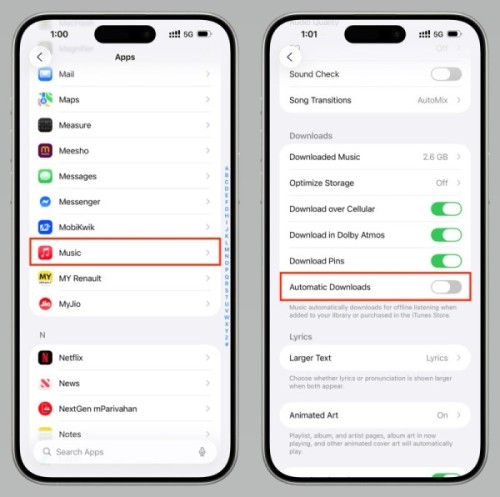
- Open Music settings. Select Apps > Music or Music, depending on your iOS or iPadOS version.
- Turn on Automatic Downloads. Enable Automatic Downloads to automatically download music you add to your Library for offline listening.
This feature is especially useful if you frequently add new music and want it downloaded automatically. However, it does not download your existing Apple Music Library all at once. For an existing collection, use desktop bulk selection, a playlist, or a Smart Playlist instead.
Method 5. Redownload All Purchased Songs from the iTunes Store
If some of the music in your collection was purchased from the iTunes Store, you can use Apple's built-in download option to redownload your purchased songs and albums in bulk. This is different from downloading songs through an Apple Music subscription.
- Open Apple Music. On your Mac or Windows PC, open the Apple Music app and sign in with the Apple Account used to purchase your music.
- Open your purchases. On Mac, choose Account > Purchased. On Windows, click your name at the bottom of the sidebar and select Purchased.
- Select Songs. Open the Songs section to view music purchased from the iTunes Store.
- Choose Download All. Click Download All to redownload your purchased songs and albums to your computer.
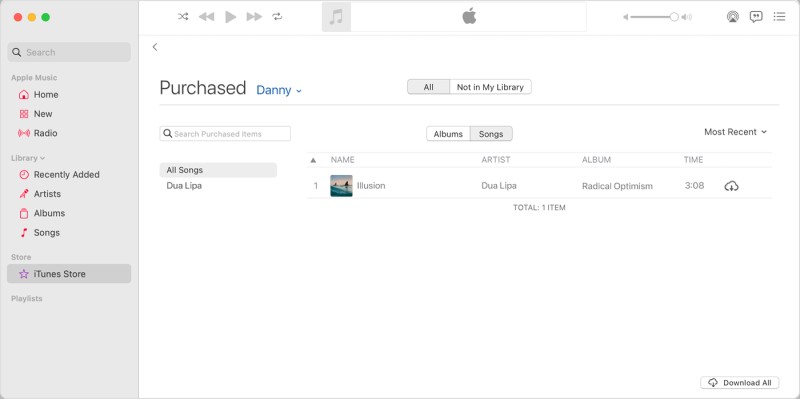
This option is specifically for music purchased from the iTunes Store. It does not download songs that are only available through an Apple Music subscription.
Part 3. How to Download All Apple Music Songs as MP3
Apple's built-in download feature is designed for offline listening within the Apple Music app. The downloaded tracks remain managed by Apple Music and are not saved as regular MP3 files that you can freely organize or transfer. If you want to download all Apple Music songs as MP3, a dedicated music converter can provide more flexibility. Macsome iTunes Converter lets you batch download Apple Music songs, albums, and playlists and save them as common audio files. You can add multiple songs or entire playlists and albums for batch processing, making it easier to handle a large Apple Music Library without downloading tracks one by one.
For the output format, you can choose MP3, AAC, WAV, FLAC, AIFF, or ALAC according to your needs. You can also customize the output quality and save the converted files to a local folder for easier organization, backup, and playback with compatible media players.
Why Use Macsome to Download Apple Music Songs as MP3?
- Batch download Apple Music songs, albums, and playlists instead of processing tracks one by one.
- Add multiple playlists or albums and process your music collection in batches.
- Convert Apple Music songs to MP3, AAC, WAV, FLAC, AIFF, or ALAC to suit different playback and editing needs.
- Preserve important metadata such as song titles, artists, album information, and album artwork.
- Process playlists at up to 10X faster speed, making it easier to handle large music collections.
- Save the converted files to your computer and transfer them to compatible music players, USB drives, and other devices.
How to Download All Songs on Apple Music as MP3 with Macsome
If you want to download all songs on Apple Music as regular MP3 files, Macsome iTunes Converter can process your Apple Music library in batches. Instead of downloading songs one by one, you can add multiple songs, albums, or playlists and save them to your computer in MP3 format.
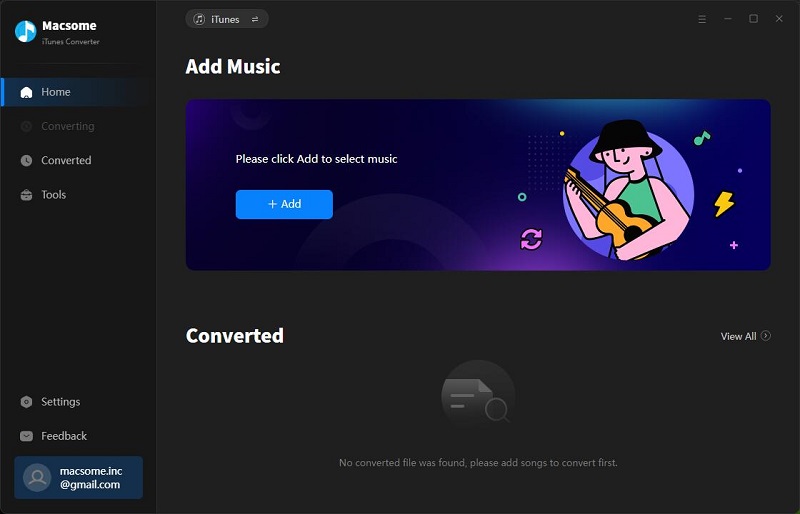
Step 1. Download, install, and launch Macsome iTunes Converter on your computer. The program provides both Apple Music App and Web Player modes. Select the mode you prefer and sign in with your Apple ID.
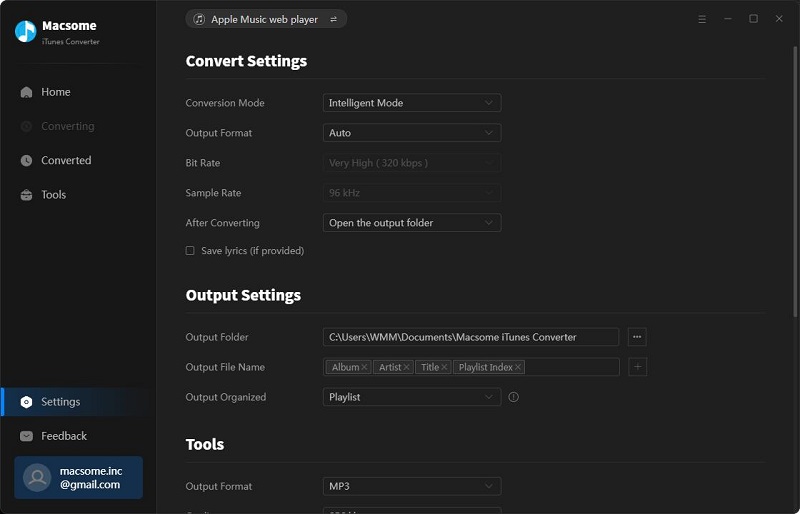
Step 2. Click the "Settings" button in the lower-left corner. Select MP3 as the output format and choose your preferred audio quality, up to 320 kbps. You can also select an output folder to store the downloaded Apple Music files.
Step 3. Open the built-in Music app and go to your Library. Find the songs, albums, or playlists you want to download. Click "Click to add" to add the selected music to Macsome iTunes Converter. You can add multiple playlists or albums to process your Apple Music collection in batches.
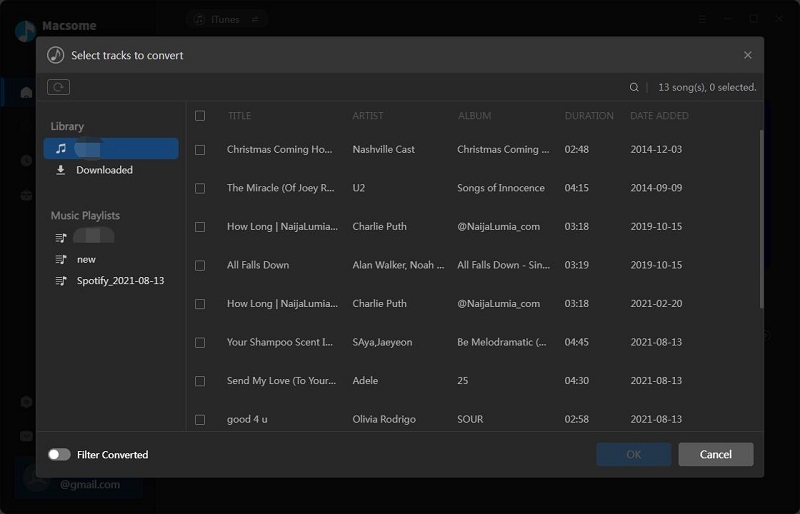
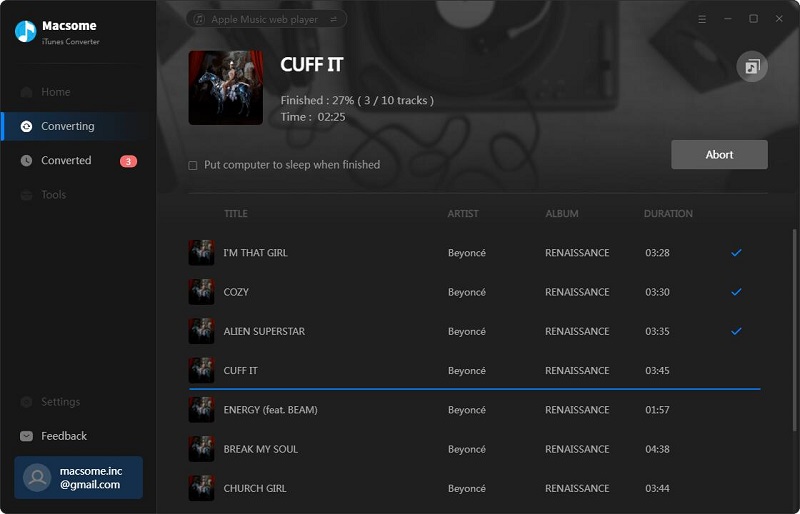
Step 4. Click the "Convert" button to start downloading the selected Apple Music songs as MP3 files. When the process is complete, open the "History" tab and access the output folder to find your converted music files. You can then keep them on your computer or transfer them to a compatible music player, USB drive, or other supported device.
Part 4. FAQs About Downloading All Songs on Apple Music
- Can I download my Apple Music library on a computer?
- Yes. On Mac or Windows, you can select songs, albums, playlists, or groups of tracks in the Apple Music app and download them for offline listening. For a large library, downloading in smaller groups can make the process easier to manage.
- How long does it take to download a large Apple Music library?
- The time depends on the number of songs, audio quality, internet speed, and available storage space. A large library can take some time, especially when downloading high-quality audio. Keeping your device connected to a stable network can help avoid interruptions.
- Where are my downloaded songs stored?
- Downloads made through the Apple Music app are managed by the app and are intended for offline playback. They are not saved as freely accessible MP3 files. If you use Macsome iTunes Converter, you can select an output folder and access the converted files directly from your computer.
- Can I transfer downloaded Apple Music songs to a USB drive?
- Apple Music downloads are managed within the Apple Music ecosystem and cannot simply be copied to a USB drive as regular audio files. If you need portable audio files, you can use Macsome iTunes Converter to save converted music to a local folder and then transfer the files to a USB drive.
Conclusion
Downloading all songs on Apple Music at once is possible if you only need them for offline listening in the Apple Music app. However, these downloads stay inside the app and can't be used as regular audio files. For a local copy, Macsome iTunes Converter lets you batch-convert selected songs, albums, or playlists to MP3 and other common formats.
You can choose the output format and audio quality, then save the files to a local folder for easier access and management. If you want to keep your Apple Music songs as regular audio files, try Macsome iTunes Converter.