



 Belinda Raman
How do you connect SoundCloud to Discord?
SoundCloud and Discord are two of the most popular platforms for music lovers. SoundCloud lets you discover and stream millions of songs, while Discord makes it easy to chat, share content, and hang out with your community. Unlike Spotify, however, Discord doesn't offer an official built-in integration for SoundCloud. The good news is that you can still connect SoundCloud to Discord, share SoundCloud music with friends, display your listening activity, and even play SoundCloud tracks in voice channels using a few simple methods. In this guide, you'll learn how to link SoundCloud to Discord step by step.
Method 1. Share SoundCloud Songs on Discord
Sharing SoundCloud songs on Discord is the easiest way to connect SoundCloud to Discord. If you simply want to share your favorite tracks, albums, or playlists with friends, you can post SoundCloud links directly in any Discord channel.
When you paste a SoundCloud URL into Discord, it will usually create a preview card showing the track title, artist information, and cover artwork. This makes it easy to share SoundCloud music on Discord and lets other members quickly open the song.
Steps to Share SoundCloud Music on Discord:
- Open the SoundCloud website or mobile app. Search for the song, album, or playlist you want to share.
- Click the Share button below the track. Select Copy Link.
- Open Discord and enter the channel where you want to share the music. Paste the SoundCloud link and send the message.
Discord will automatically generate a preview for the SoundCloud track, making it easy for your friends to discover and listen to the music.
Method 2. Share Your SoundCloud Listening Activity on Discord
Many music lovers want to show their current listening activity on Discord so friends can see what they are playing. While Spotify offers official Discord integration, SoundCloud does not currently provide a built-in Discord connection or Rich Presence feature.
However, you can still show your SoundCloud listening status on Discord by using third-party tools like PreMiD or by manually sharing your current song, artist, or playlist in your Discord profile.
Option 1. Show Your SoundCloud Listening Status with PreMiD
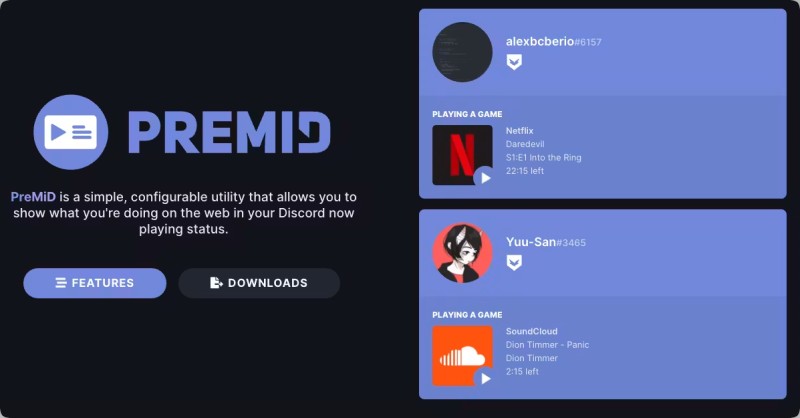
PreMiD is a third-party application that allows users to display their online activities through Discord Rich Presence. By using the SoundCloud presence extension, you can show your current SoundCloud activity on your Discord profile.
Steps to Show SoundCloud Activity on Discord with PreMiD:
- Download and install the PreMiD desktop application.
- Install the PreMiD browser extension for Chrome, Edge, or another supported browser.
- Open the PreMiD store and add the SoundCloud presence extension.
- Open SoundCloud in your browser and play your favorite song.
- Open Discord and check your profile. Your SoundCloud listening activity should appear through Discord Rich Presence.
Option 2. Set a Custom Discord Status for SoundCloud
If you don't want to install additional applications, you can manually share your SoundCloud activity through your Discord custom status.
Steps to Add SoundCloud Music to Discord Status:
- Step 1. Open Discord and click your profile picture.
- Step 2. Select Set Custom Status.
- Step 3. Enter the SoundCloud song title, artist name, or playlist information.
- Step 4. Add a SoundCloud link if you want friends to open the track directly.
- Step 5. Save your status and share your music taste with your Discord community.
Method 3. Play SoundCloud Music in Discord Voice Channels
If you want to listen to SoundCloud music with friends in a Discord voice channel, you can use a Discord music bot that supports SoundCloud playback. These bots allow members of a server to play songs and playlists together without leaving Discord.
A SoundCloud Discord bot can be useful for music communities, gaming groups, and friends who want to enjoy shared playlists. However, bot availability and supported music services may change over time.
Option 1. Add a SoundCloud Bot to Your Discord Server
Adding a music bot is one of the easiest ways to play SoundCloud music on Discord. Once the bot is connected to your server, members can use commands to search for songs or play SoundCloud links in voice channels.
Steps to Add a SoundCloud Bot to Your Discord Server:
- Find a Discord music bot that supports SoundCloud playback.
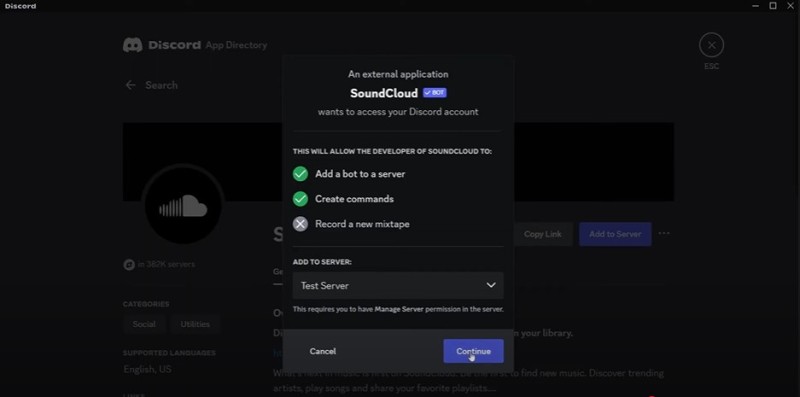
- Open the bot's official website and click the invite button.
- Select your Discord server and authorize the required permissions.
- Join a Discord voice channel where you want to play music.
- Use the bot command and paste your SoundCloud song or playlist URL.
Option 2. Play SoundCloud Tracks with a Discord Music Bot
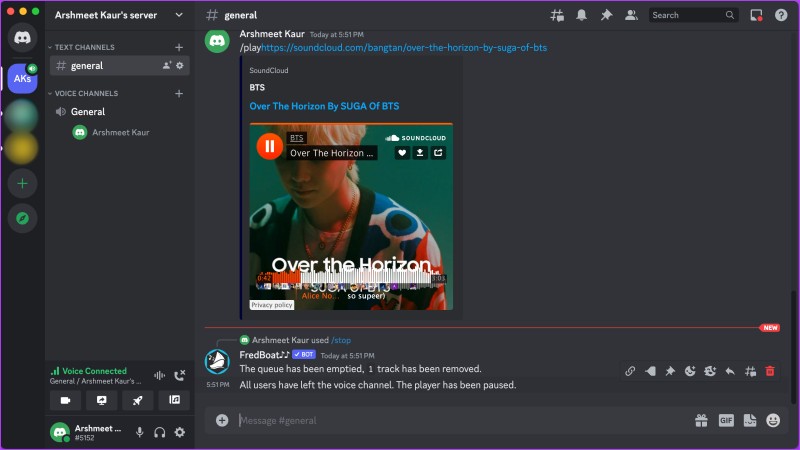
After adding the bot to your server, you can usually play SoundCloud music by entering a simple command. The exact command depends on the bot you choose.
For example, many Discord music bots use commands similar to:
/play SoundCloud URLThe bot will search for the SoundCloud track and start playing it in your Discord voice channel.
Limitations of SoundCloud Discord Bots:
- Some bots may stop supporting SoundCloud because of platform updates.
- Music quality may depend on the bot service and your internet connection.
- Some features may require a premium subscription.
- Tracks may become unavailable if the original SoundCloud content is removed.
If you want a more reliable way to keep your favorite SoundCloud songs, download them as local audio files and upload them to Discord whenever you need.
Method 4. Download SoundCloud Music for Discord with Macsome Music One
Sharing SoundCloud links or using Discord music bots can be convenient, but these methods require an internet connection and may have playback limitations. If you want to upload SoundCloud songs to Discord, create your own music library, or enjoy your favorite tracks offline, downloading SoundCloud music is a more flexible solution. To download SoundCloud songs and playlists, Macsome Music One provides an easy way to save SoundCloud music and convert it into various audio formats. It supports downloading SoundCloud tracks, albums, and playlists while preserving important metadata such as artist information and album artwork. You can export music as MP3, AAC, WAV, FLAC, AIFF, and ALAC.
Key Features of Macsome Music One
- Download SoundCloud songs, albums, and playlists for offline listening.
- Convert SoundCloud music to MP3, AAC, WAV, FLAC, AIFF, or ALAC formats.
- Support downloading music from SoundCloud, Spotify, Apple Music, YouTube Music, Qobuz, and more.
- Preserve song information, including title, album, artist, and album artwork.
- Keep the original audio quality after downloading.
- Support both SoundCloud Go+ and free SoundCloud accounts.
- Batch download music, podcasts, record online audio, edit tags, and manage your music library.
How to Download SoundCloud Music and Upload It to Discord with Macsome Music One?
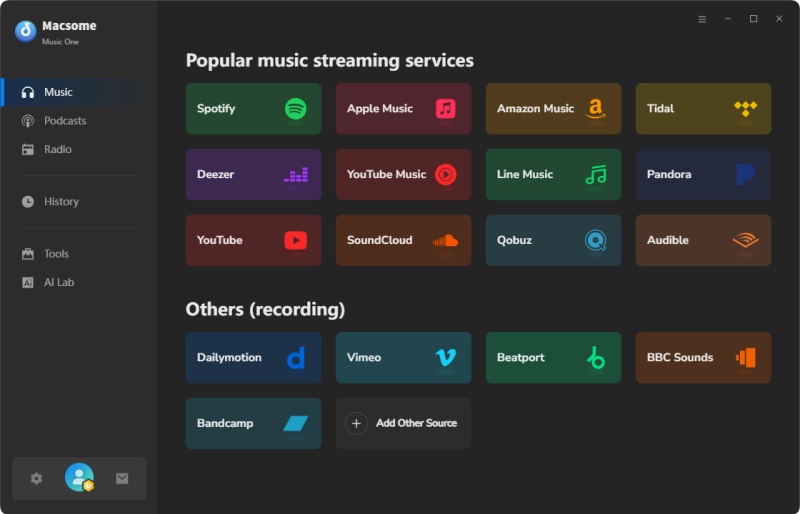
Step 1. Download, install, and launch Macsome Music One on your computer. Select the "SoundCloud" module from the supported streaming platforms. The SoundCloud web player will open automatically. If it does not open, click "Open Web Player" and sign in to your SoundCloud account.
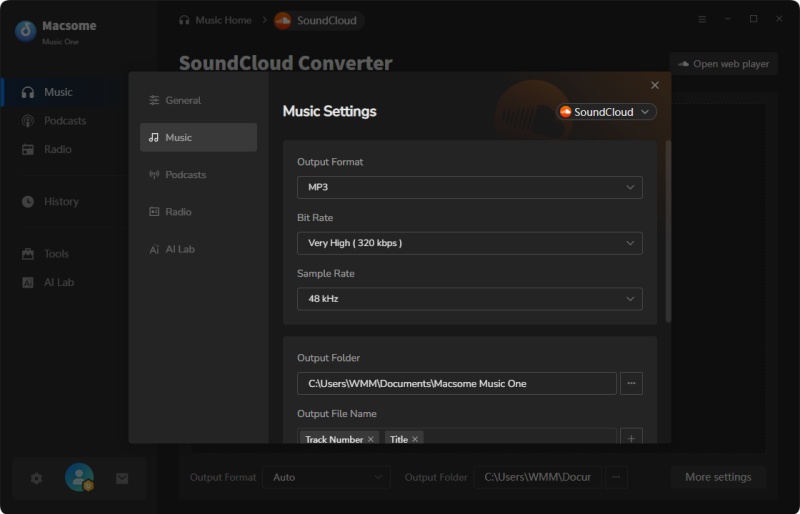
Step 2. Click the "Settings" icon in the lower-left corner. Select your preferred output format, such as MP3, AAC, WAV, FLAC, AIFF, or ALAC. You can also adjust the audio quality and choose a local folder to save your downloaded SoundCloud music.
Step 3. In the SoundCloud web player, search for the songs, albums, or playlists you want to download. Click the "Click to Add" button to add the selected tracks to the download list.
Step 4. Click the "Convert" button to start downloading SoundCloud music. After the download process is complete, go to the "History" section on the left and click the "Folder" icon to locate your downloaded files.
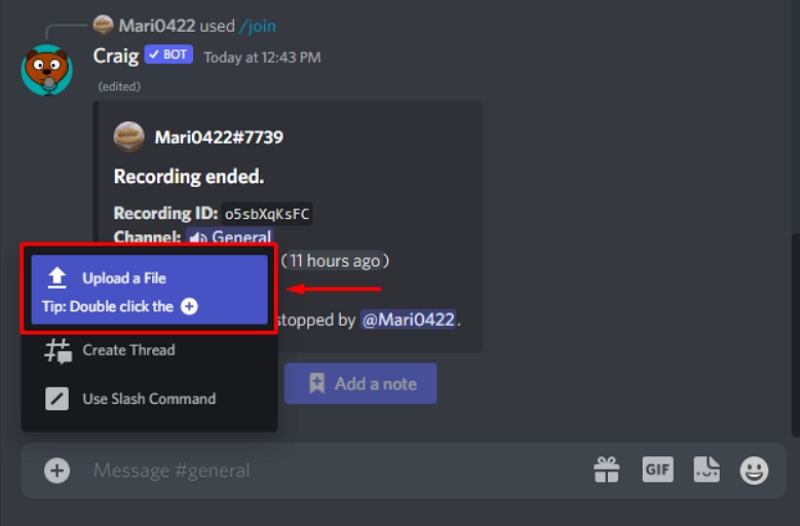
Step 5. Open Discord and upload the downloaded SoundCloud audio files to your Discord channel. Now you can share your favorite SoundCloud songs with friends and enjoy offline playback anytime.
❓ FAQs About Connecting SoundCloud to Discord
- Can I connect SoundCloud directly to Discord?
- No. SoundCloud does not currently offer an official Discord integration. However, you can share SoundCloud links, use Discord bots, or download music for offline playback.
- Can Discord play SoundCloud music?
- Yes. Some Discord music bots support SoundCloud playback. You can also download SoundCloud songs and upload them to Discord manually.
- How do I show SoundCloud status on Discord?
- SoundCloud does not have built-in Discord Rich Presence support. Third-party status tools may help display your current listening activity.
- What is the best way to use SoundCloud music on Discord?
- Downloading SoundCloud music as local files provides the most flexibility. With Macsome Music One, you can save SoundCloud playlists in high quality and use them on Discord or other devices.
- Can I download SoundCloud playlists for Discord?
- Yes. Macsome Music One supports batch downloading SoundCloud playlists and converting them into common audio formats compatible with Discord.
Final Thoughts
Connecting SoundCloud to Discord is easier than it might seem. Depending on your needs, you can share SoundCloud track links in Discord chats, show your listening status using third-party Discord Rich Presence tools, play SoundCloud music in voice channels with compatible music bots, or download your favorite tracks for offline playback.
If you want a more flexible way to use SoundCloud music with Discord, Macsome Music One is an excellent choice. It allows you to download SoundCloud songs, albums, and playlists, convert them to popular formats such as MP3, FLAC, WAV, AAC, AIFF, and ALAC, while preserving audio quality, ID3 tags, and album artwork. After downloading, you can upload your favorite audio files to Discord, share them with friends, or enjoy offline listening anytime without an internet connection.
Whether you want to share SoundCloud links, display your current listening activity, enjoy music together in a Discord server, or build your own offline music library, the methods in this guide can help you make the most of SoundCloud and Discord.