

Part 1: How to Register Macsome Amazon Music Downloader for Windows?
Before started, please download, install, and run Macsome Amazon Music Downloader on your PC.
Step 1: You can directly click the profile icon on the left to open the registration window. Plus, you can also hit on the menu bar from the upper-right corner to select the "Register" option to log in with your email address and registration code to activate it.
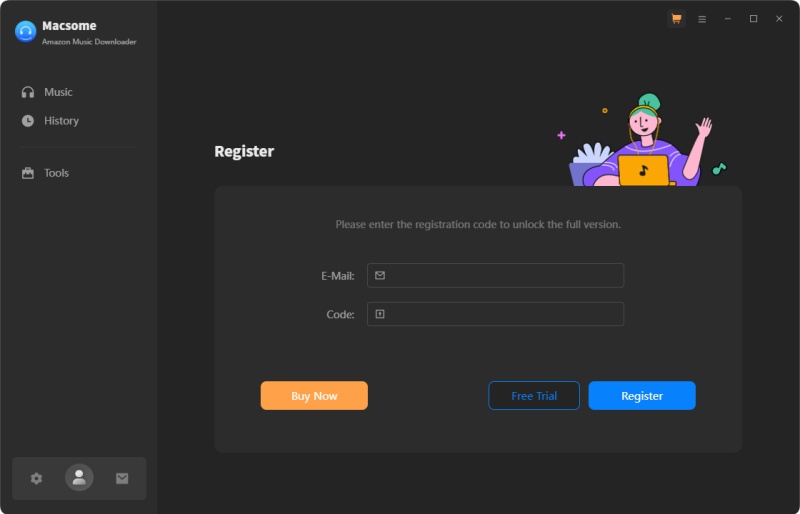
Step 2: Copy and paste the license into the registration popup dialog, then click "Register".
Part 2: How to Use Macsome Amazon Music Downloader for Windows?
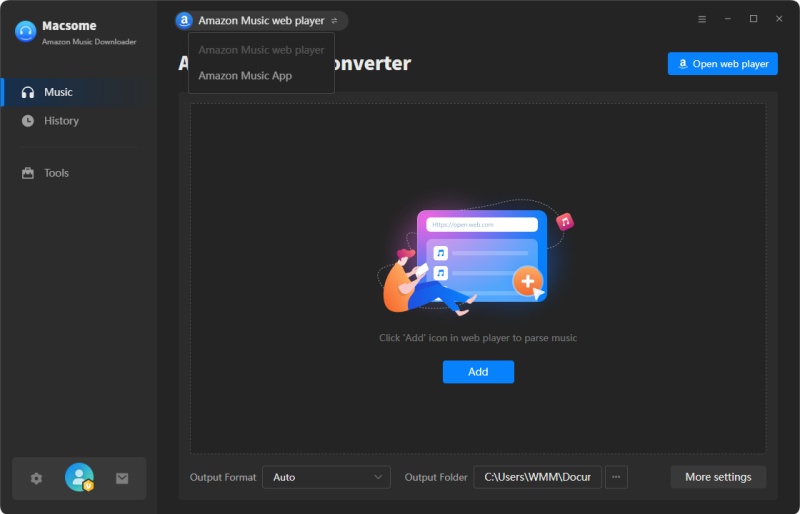
Macsome Amazon Music Downloader provides two download modes, allowing you to download and convert music from the Amazon Music app or through the Amazon Music Web Player. You can choose the mode that best fits your needs.
Amazon Music App: Keep Ultra HD/HD audio quality.
Amazon Music Web Player: Support EAC3/AC4 output and preserve Dolby Atmos & Spatial Audio information.
Step 1. Set the Output Formats and Other Parameters
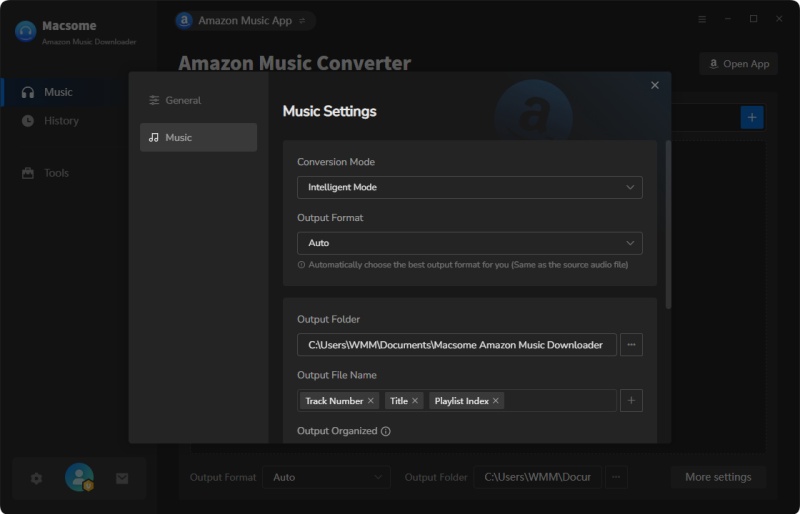
Click the icon to open the Settings window. You can select the Output Format (Auto/MP3/AAC/FLAC/WAV/AIFF/ALAC). EAC3 (*.m4a) and AC4 (*.m4a) are also available when using Amazon Music Web Player Mode. You can also customize the Bit Rate (320kbps, 256kbps, 192kbps, 128kbps), Sample Rate (44.1kHz, 48kHz, 96kHz, 192kHz), and Output Path.
What's more, you can organize your downloaded Amazon Music files by Playlist, Artist, Album, Artist/Album, or Album/Artist for easier management.
Step 2. Add Amazon Music
Download music from the Amazon Music app: Select the Amazon Music App option, and the Amazon Music app will open automatically.
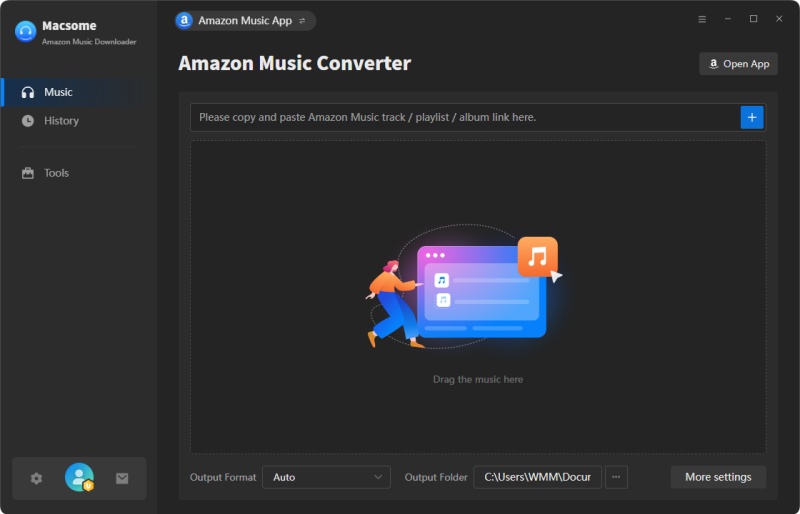
Open a playlist, artist page, or album in the Amazon Music app, then drag and drop the playlist to the rectangular box. You can also copy and paste the music link for parsing.
Download music from the Amazon Music Web Player: Select the Amazon Music Web Player option, and the built-in web player will open automatically. Log in with your Amazon Music account.
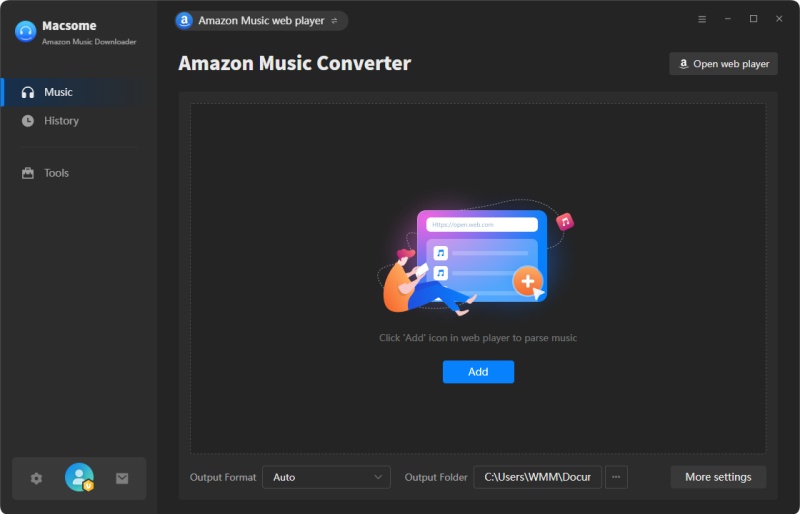
Open a track, album, podcast, or playlist, then click the "Click to add" icon to select the music you want to download.
Select the songs you want to download and click the "Add" button to import them into Macsome's main interface.
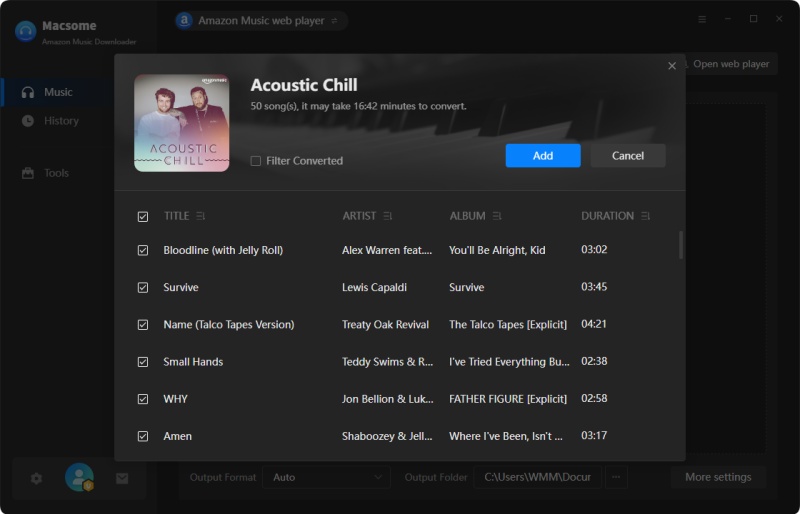
Step 3. Start to Download Amazon Music
To add more songs from other playlists, simply click the "Add More" button.
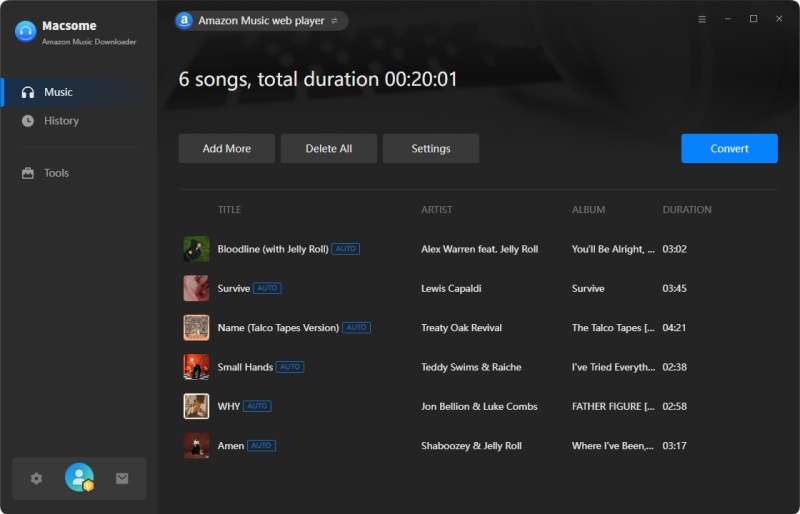
Click the "Convert" button to start downloading Amazon Music files in your selected output format.
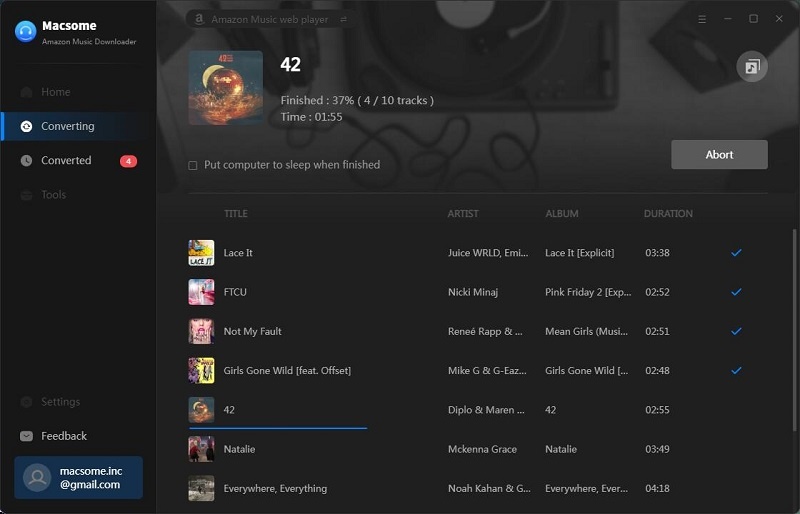
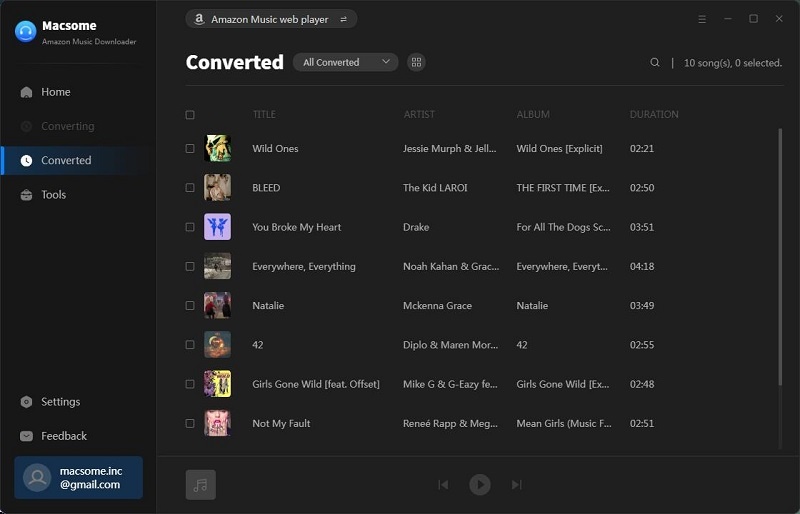
When the conversion is completed, you can find your downloaded Amazon Music files by clicking the "History" icon.
Part 3: How to Use Macsome Amazon Music Downloader Built-in Tools?
Macsome Amazon Music Downloader also offers four smart tools, such as AA/AAX Converter, Format Converter, CD Burner, Audio Editor, and Tag Editor. You can access these tools from the left toolbar by selecting the "Tools" option.
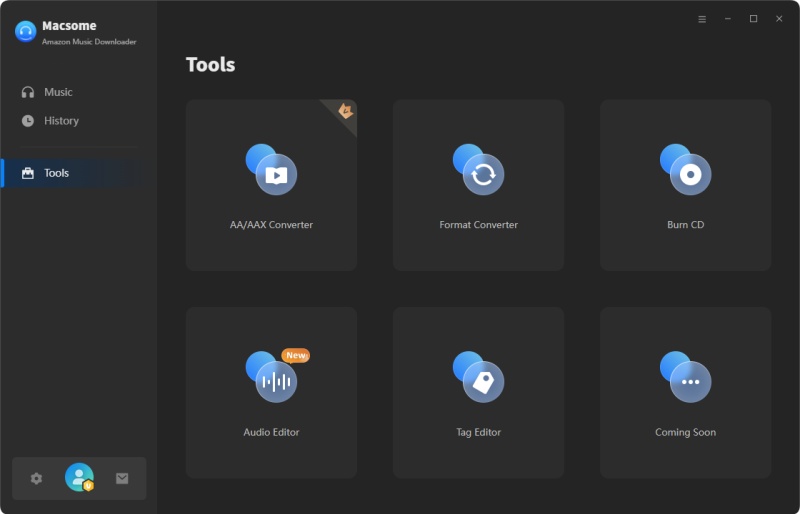
AA/AAX Converter
The AA/AAX Converter lets you convert local Audible audiobooks to MP3, M4A, and M4B with original quality. Besides, you can also split audiobooks by chapters, segments, or time segment.
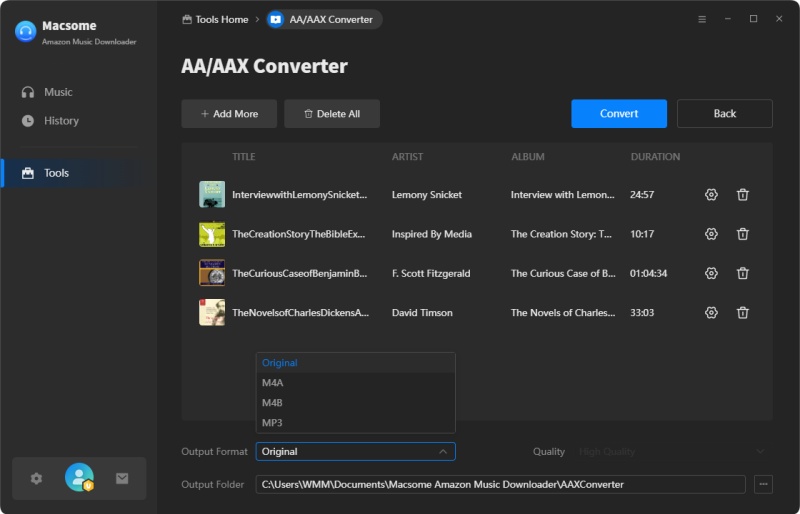
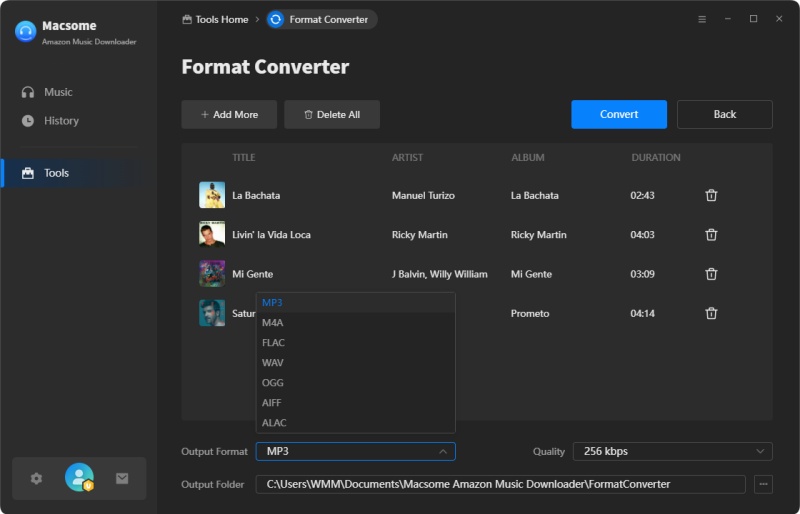
Format Converter
The Format Converter tool is designed to convert local media files. To begin, click the "+ Add" button to select local audio files from your computer. Then, click "Convert" to output it in your desired format, including MP3, M4A, FLAC, WAV, OGG, AIFF, and ALAC.
CD Burner
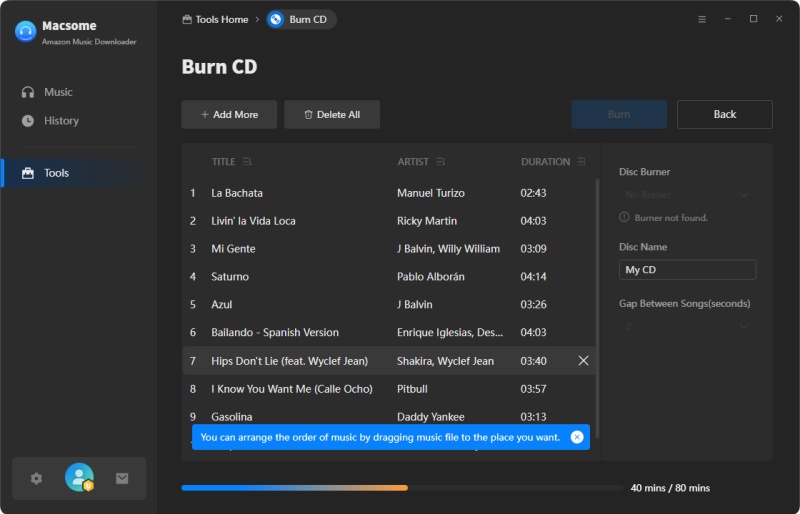
It provides a convenient solution for users who want to burn the downloaded Amazon Music songs or other local audio files to CDs. By clicking the "+ Add" button, you can import the songs you have just converted into the list. Insert a blank disc into your CD or DVD burner, and then click "Burn" to initiate the burning process.
Audio Editor
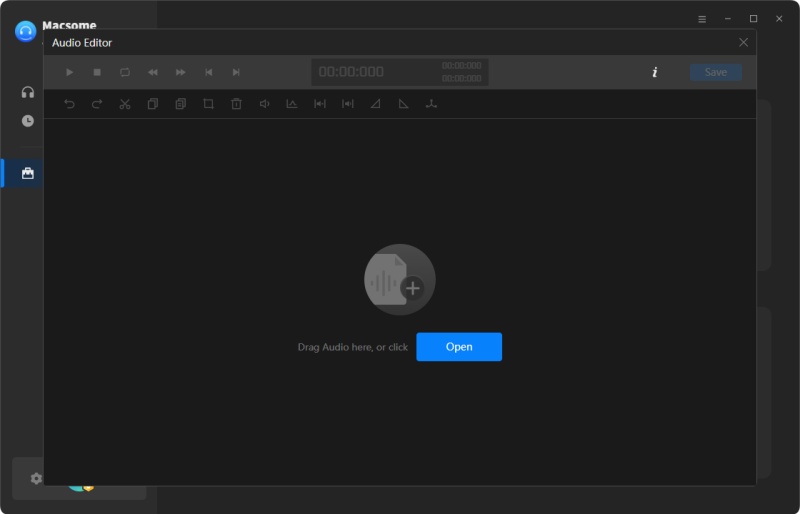
Macsome Amazon Music Downloader features a new free Audio Editor, which allows you to cut, copy, paste, trim, split, and delete audio segments. Adjust volume levels, apply fade-in/fade-out effects, and normalize audio for consistent levels.
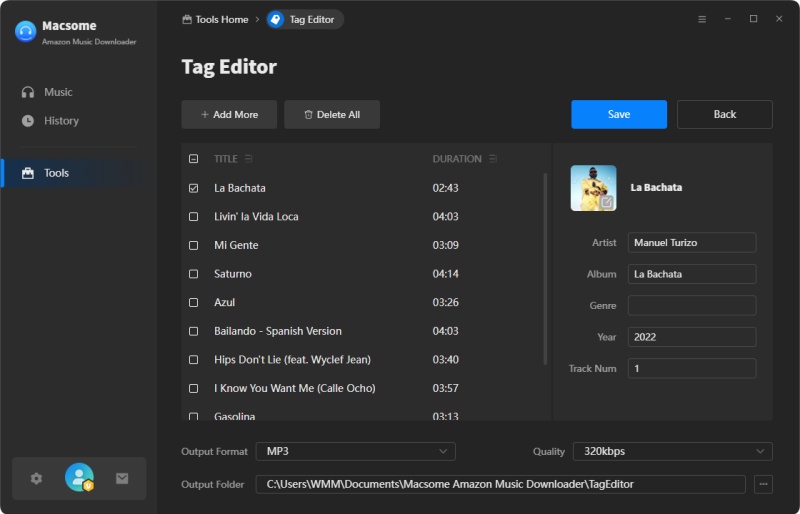
Tag Editor
In the Tag Editor section, you can modify the tag information of songs. Click the "+ Add" button to import the local audio files, then edit the parameters you want. Once you have made the desired changes, simply click "Save" to save the changes.